Overview
When connecting to the Varibill OData feed in Microsoft Excel, you may encounter an error indicating that a specific property or column does not exist.
This error usually occurs when Excel has cached an older version of the OData feed schema, and Varibill’s data model has since changed (for example, columns were added, removed, or renamed). Excel continues to use the outdated cached schema and fails to load the updated data.
This is not a Varibill bug. It is caused by Excel using a stale cached OData schema.
Applies to
Users connecting Varibill OData feeds in Microsoft Excel.
What the error looks like
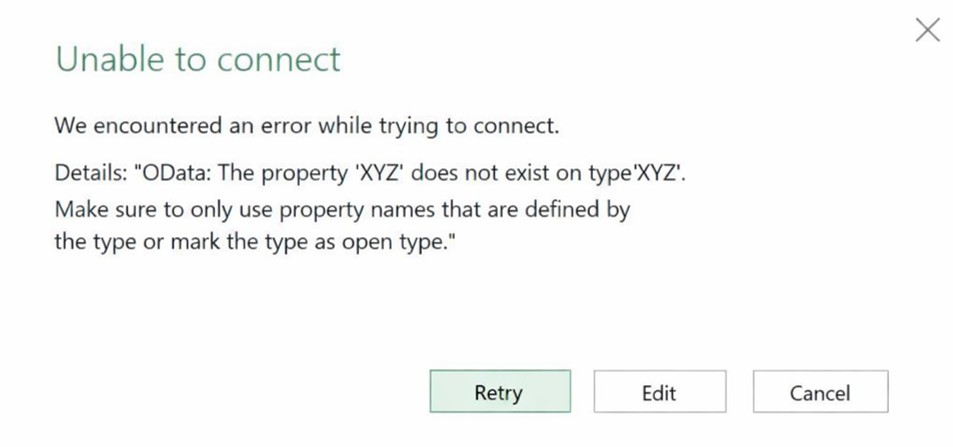
You may see an error message similar to:
"Unable to connect
We encountered an error while trying to connect.
Details: OData: The property 'XYZ' does not exist on type 'ABC'. Make sure to only use property names that are defined by the type or mark the type as open type.”
Cause
Excel cached an old OData schema
The Varibill data model changed
Excel did not automatically refresh its understanding of the feed structure
Solution
In most cases, clearing Excel’s cache resolves the issue. If not, creating a new Excel workbook will.
Option A: Clear Excel’s cache (recommended)
There are two ways to clear Excel’s cache. You can use either:
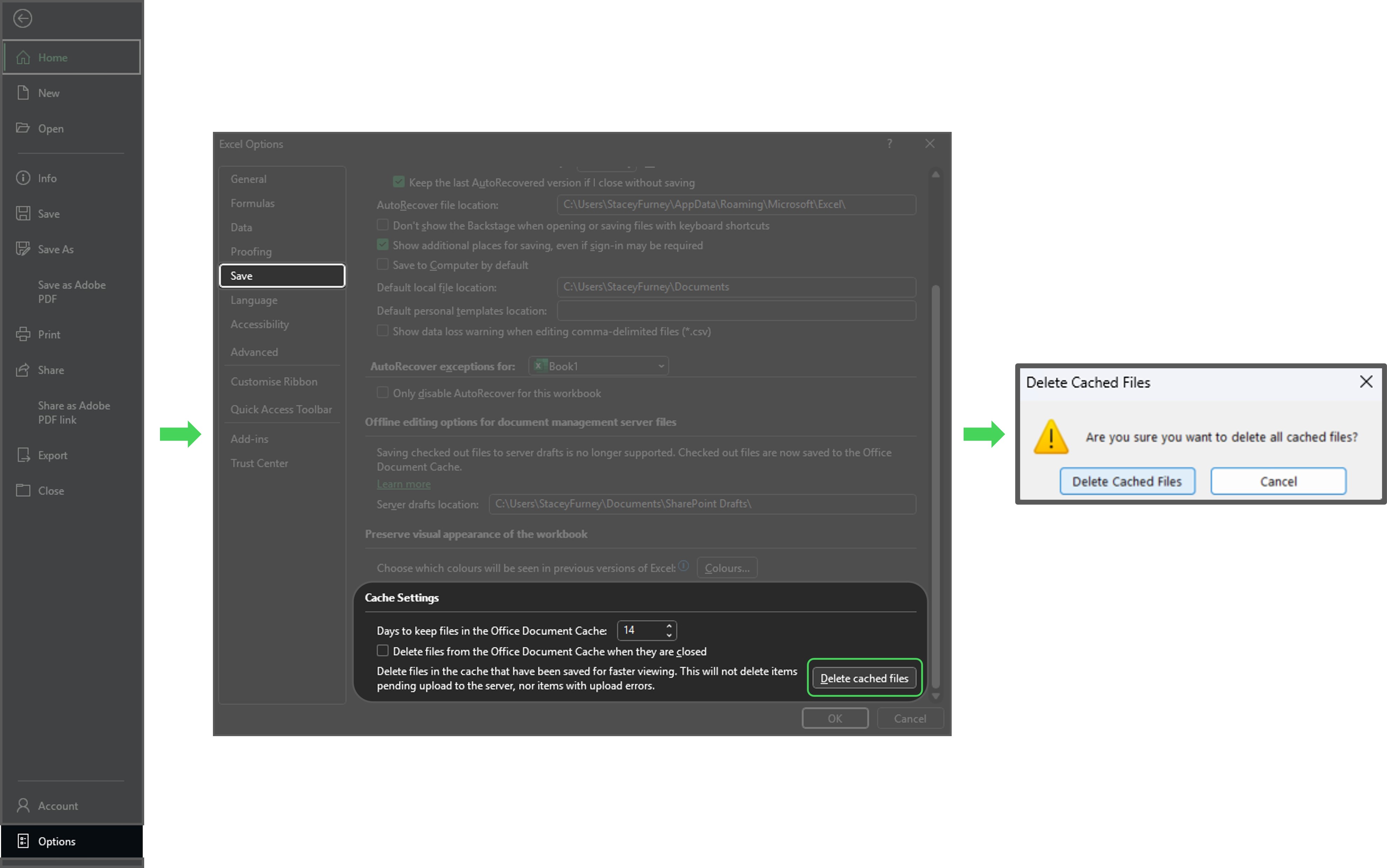
Method 1: Via File → Options
- Open Excel.
- Click File.
- Click Options.
- In the Excel Options window, select Save.
- Click Delete Cached Files.
- Close Excel completely.
- Reopen Excel.
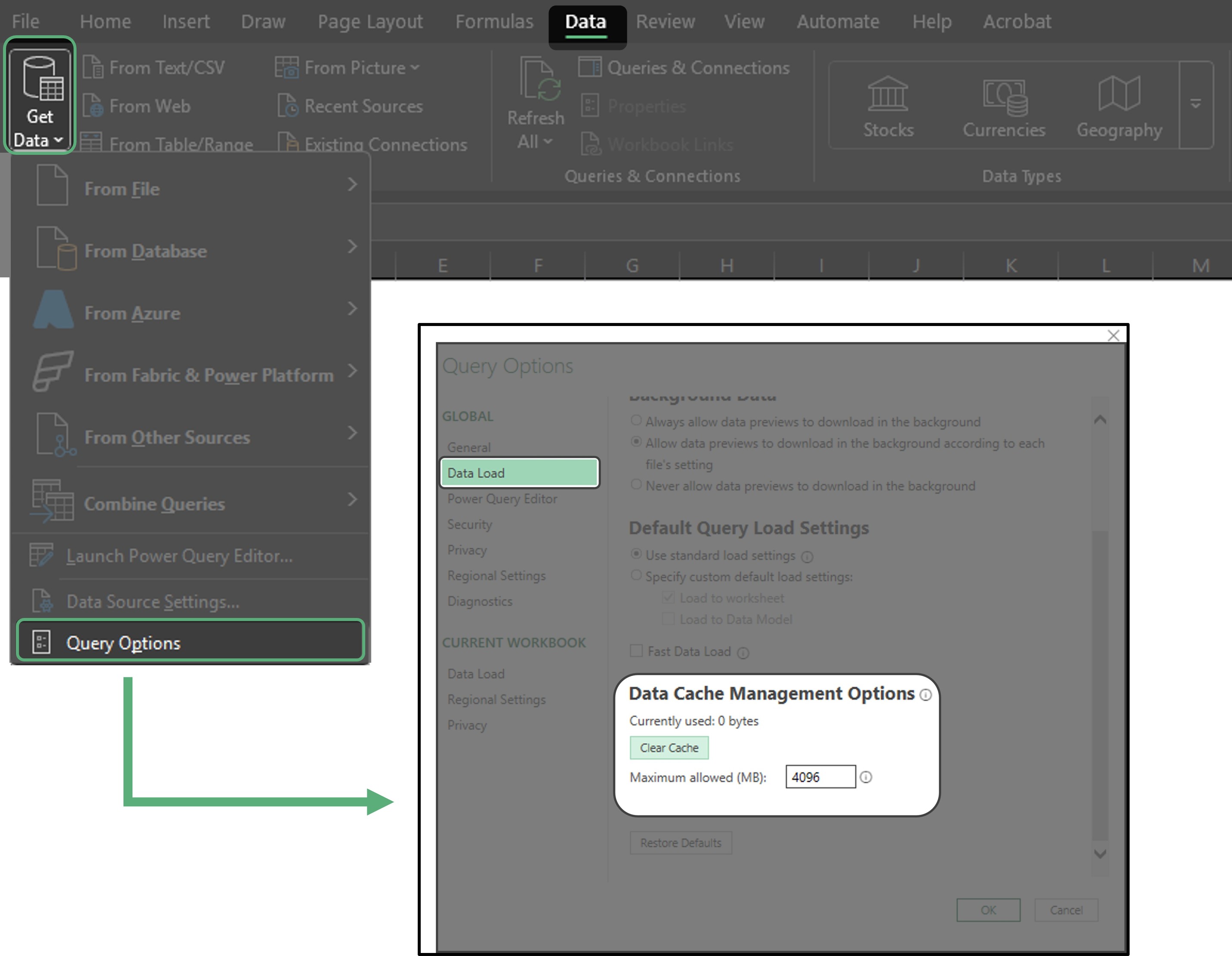
Method 2: Via Data → Query Options
- Open Excel.
- Go to the Data tab.
- Click Get Data, then open Query Options (or Options, depending on your Excel version).
- Open Data Cache Management Options.
- Click Clear Cache.
- Confirm that it shows 0 bytes used.
- Close Excel completely.
- Reopen Excel.
Reconnect to the OData feed
After clearing the cache:
- Open Excel.
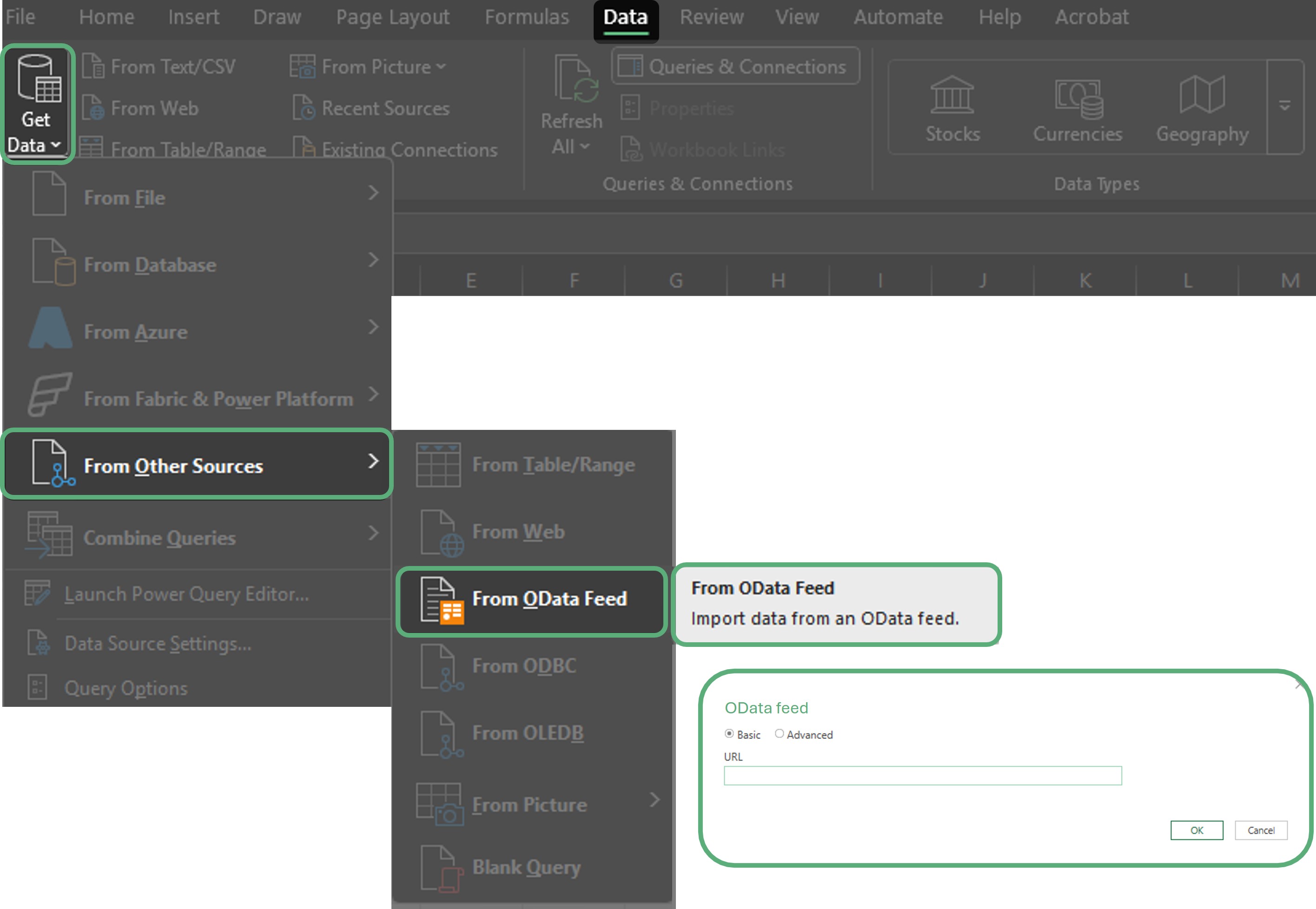
- Go to Data → Get Data → From Other Sources → From OData Feed.
- Paste your Varibill OData URL (for example: https://api.varibill.com/...).
- Your Varibill OData URL can be found under "Tenant Authentication" in your Varibill Application.
- Click OK and allow Excel to load the data.
Option B: Create a new Excel workbook (if Option A does not work)
If clearing the cache does not resolve the issue:
- Close Excel.
- Open Excel again.
- Create a new blank workbook.
- Reconnect to the OData feed using Data → Get Data → From OData Feed.
This is sometimes required because Excel can retain schema information inside the workbook itself, even after clearing the cache.
Why this happens
When Varibill changes the data model, Excel does not automatically detect or refresh the schema of an existing OData connection. Instead, Excel continues to use the previously cached structure of the feed.
To fix this, Excel must be forced to forget the old schema by clearing its cache or by using a new workbook.
If the issue persists...
If the problem continues after:
- Clearing the cache, and
- Creating a new Excel workbook
Please contact Varibill Support and include:
- A screenshot of the error
- The OData URL you are using
- A brief description of what you were trying to load
Was this article helpful?
That’s Great!
Thank you for your feedback
Sorry! We couldn't be helpful
Thank you for your feedback
Feedback sent
We appreciate your effort and will try to fix the article