Overview
The Email Service page configures the provider Varibill uses to send supported emails on behalf of the tenant, such as notifications and verification messages.
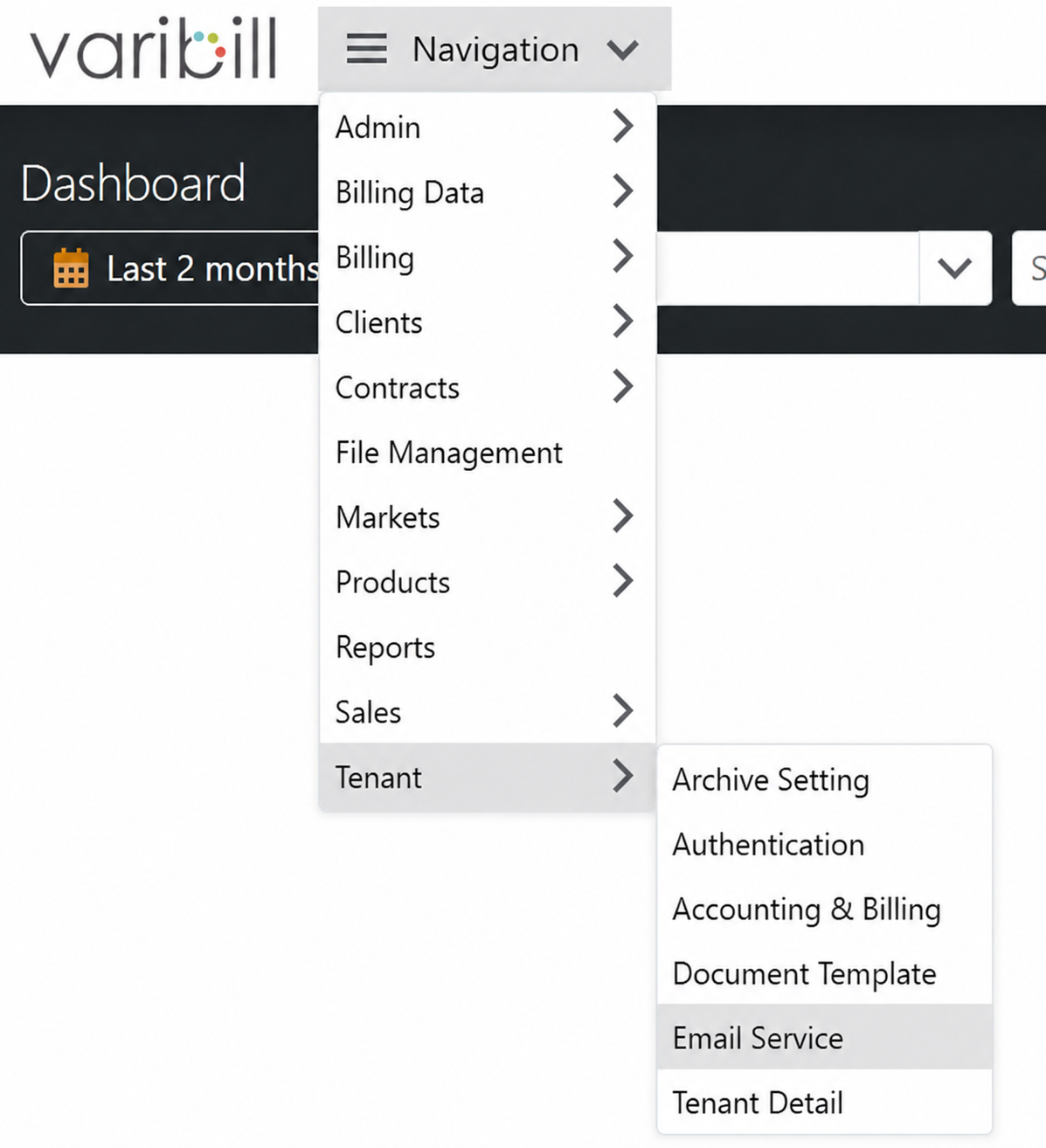
To open the page, go to Navigation > Tenant > Email Service.
Varibill can use the Varibill-managed SendGrid service or a customer-provided SMTP service.
For email service verification, Varibill uses the Billing From Email address configured under Navigation > Tenant > Tenant Detail > Email Details. Ensure that the selected provider recognizes this address as an authorized sender. For a customer-provided service, the authenticated SMTP account must have permission to send from this address.
Select an Email Provider
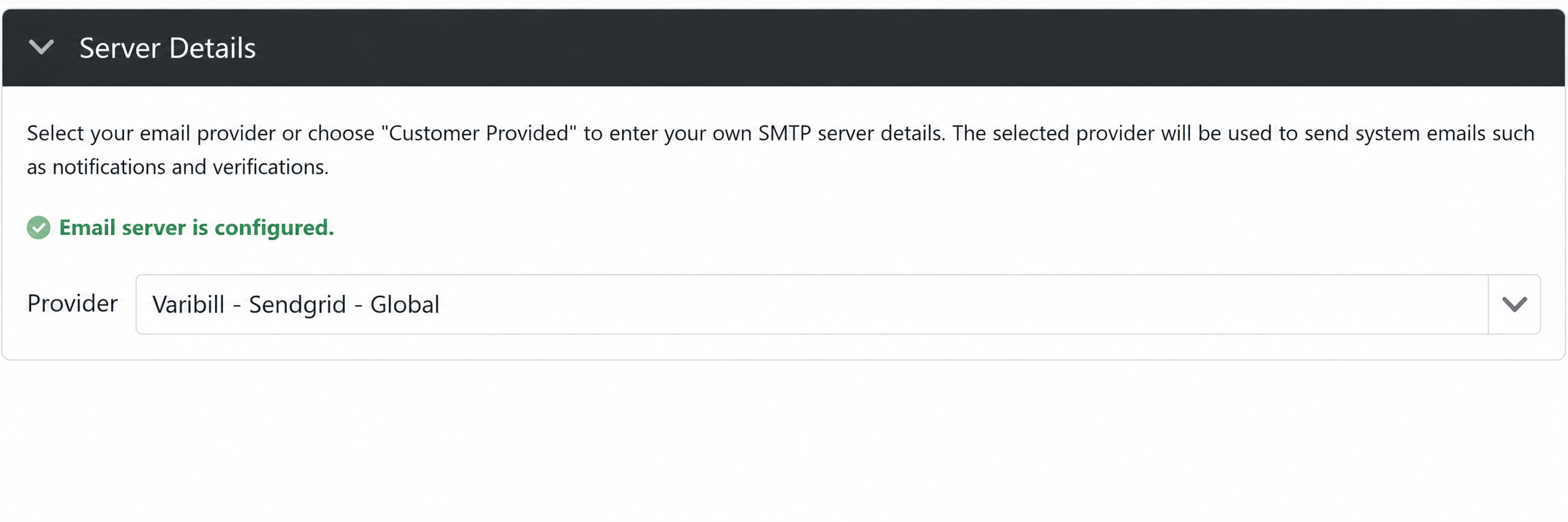
Under Server Details, select one of the following options:
- Customer Provided (Recommended): Uses an SMTP service managed by the customer.
- Varibill-Sendgrid-Global: Uses the Varibill-managed SendGrid service. No SMTP connection details are required.
Note: Where an organization-approved SMTP service is available, Varibill recommends the Customer Provided Email Service option. Messages sent through the Varibill-managed SendGrid service may be flagged by some recipient email-security filters, which can affect delivery.

Use a Customer-Provided SMTP Service
Select Customer Provided to use an SMTP service managed by the customer.
Warning: Use a dedicated SMTP account approved by the organization’s email administrator. Enter the password directly in Varibill. Do not send SMTP credentials to Varibill Support by email.
To configure the connection:
- Select Customer Provided.
- Under Connection Settings, enter the SMTP server details.

| Field | Description | Example |
|---|---|---|
| Host | The fully qualified domain name or IP address of the SMTP service. | smtp.example.com |
| Port | The port used by the SMTP service. The field defaults to 587. | 587 |
| Username | The account used to authenticate with the SMTP service. | billing@example.com |
| Password | The password for the SMTP account. | — |
If the authentication username differs from the Billing From Email address, ensure that the SMTP account has permission to send as, or on behalf of, that address.
Click Save. Varibill opens the Send Test Email window. Complete the steps under Verify the Email Service.
Use the Varibill-Managed SendGrid Service
The Varibill-managed option does not require SMTP credentials to be entered in Varibill.
To configure the service:
- Select Varibill - Sendgrid - Global.
- Click Save. Varibill opens the Send Test Email window.

Complete the steps under Verify the Email Service.
Warning: If verification returns the error
The from address does not match a verified Sender Identity,
see The
From Address Does Not Match a Verified Sender Identity.
Verify the Email Service
The same verification process applies to the Varibill-managed SendGrid service and customer-provided SMTP services. After Save is clicked, Varibill opens the Send Test Email window. The Email Server record is saved only after verification succeeds.
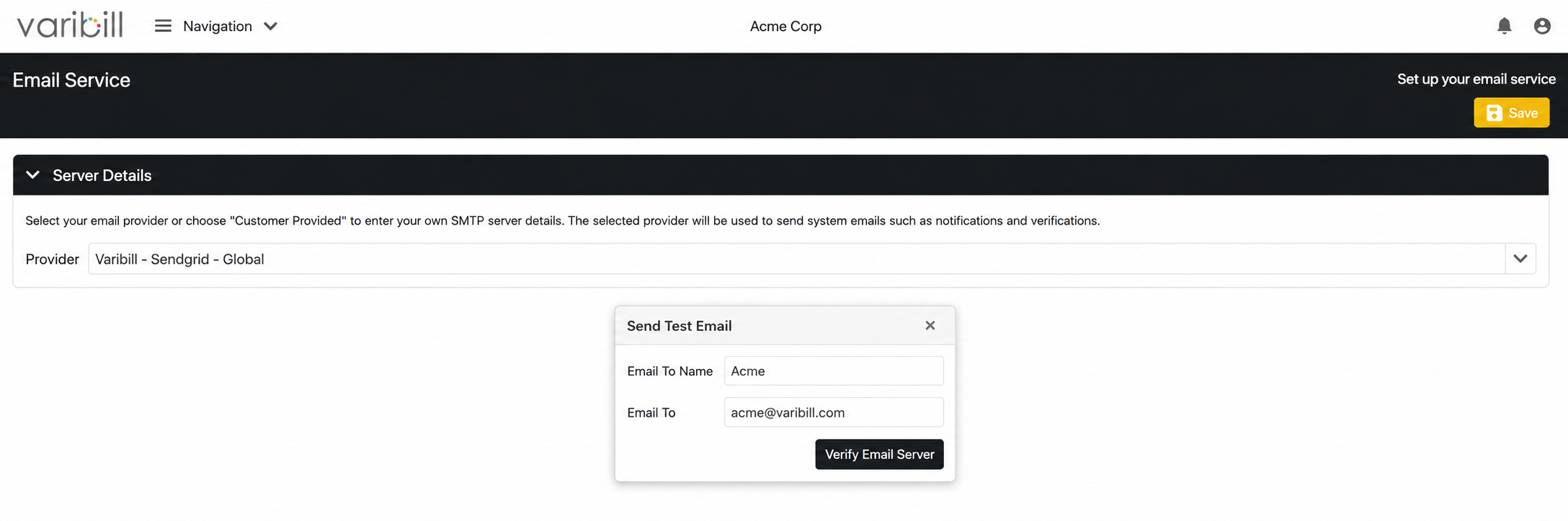
The verification process confirms that Varibill can send an email through the selected service and that the verification message can be received.
Varibill sends the verification email through the selected provider. For Customer Provided, the Host, Port, Username, and Password fields determine the SMTP service and account used to submit the message. The Email To Name and Email To fields determine only the intended recipient and do not change the SMTP connection or sender address.
These fields are populated with the signed-in user’s name and email address by default and can be changed before the verification email is sent.
To verify the configuration:
- In Send Test Email, confirm or enter the recipient’s name in Email To Name.
- Confirm or enter the recipient’s email address in Email To.
- Click Verify Email Server.
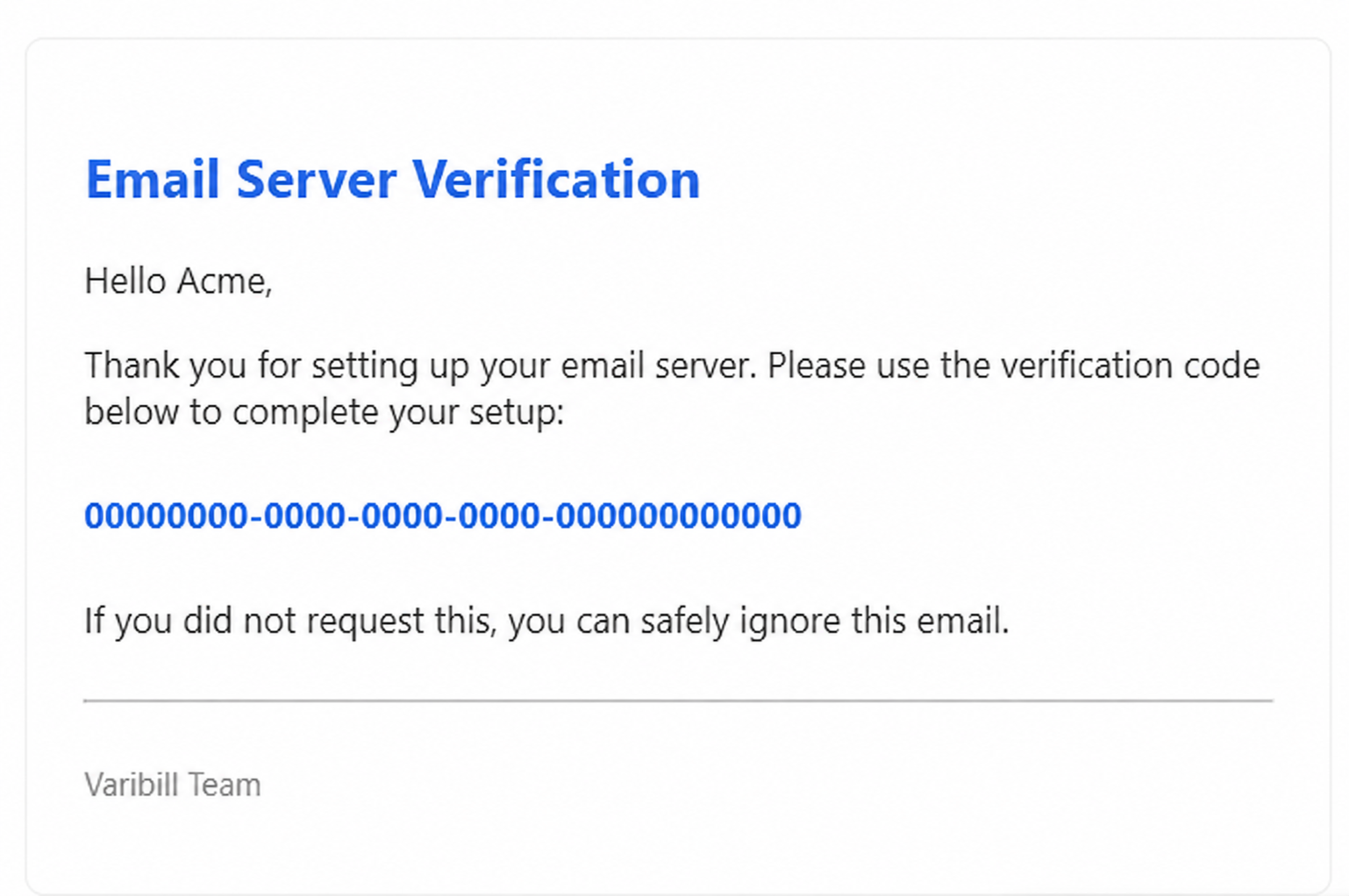
- Open the Email Server Verification email sent to the specified address.
- Copy the verification code from the email.
- Return to Varibill.
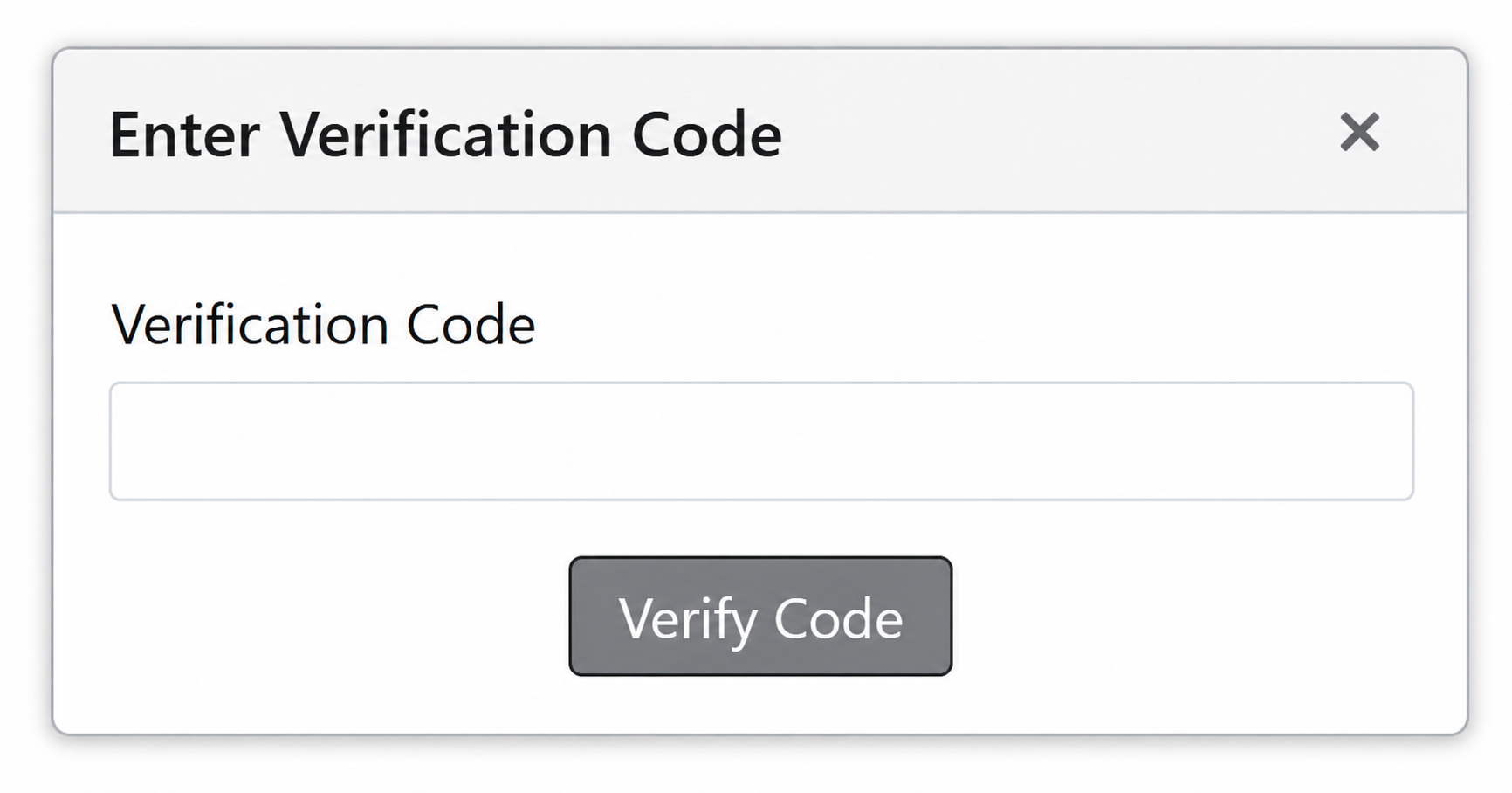
- In Enter Verification Code, enter the code in Verification Code.
- Click Verify Code.
When verification succeeds, the page displays Email server is configured and a success notification confirms that the Email Server record was created or updated.
Tip: If the verification email does not arrive, check the recipient address and the spam or junk folder. A verification email can be resent after the 60-second cooldown.
Troubleshooting
The Verification Email Does Not Arrive
- Confirm that the recipient address entered in Send Test Email is correct.
- Check the recipient’s spam or junk folder.
- Wait for the resend cooldown to finish before requesting another email.
- For SendGrid, confirm with Varibill Support that any required sender-domain authentication has been completed.
- For a customer-provided service, confirm that the connection details and SMTP credentials are correct.
A Customer-Provided Service Cannot Be Verified
- Confirm the SMTP host and port with the email service administrator.
- Confirm that the username and password belong to an active SMTP-enabled account.
- Confirm that the provider permits SMTP authentication using the username and password entered in Varibill, and that no account or security policies prevent the connection.
- Confirm that the account can send to external recipients.
- If the authentication account differs from the Billing From Email address, confirm that the required sending permission has been granted.
- Ask the email service administrator to review the provider’s authentication and delivery logs.
The From Address Does Not Match a Verified Sender Identity
- Error:
Error sending email: The from address does not match a verified Sender Identity. - Cause: The Billing From Email address configured under Tenant Detail is not recognized as a verified sender by the Varibill-managed SendGrid service.
- Resolution: Confirm that the correct Billing From Email address is configured under Navigation > Tenant > Tenant Detail > Email Details. If the address is incorrect, update it and retry verification. If it is correct, contact Varibill Support to confirm whether the address or domain has been authenticated for SendGrid. DNS changes may be required.
Email Stops Sending After Configuration
- Confirm that the SMTP account has not been disabled or locked.
- Check whether the SMTP password has changed since the service was configured.
- Confirm that the provider has not suspended the account or applied a sending limit.
- Check that the account still has permission to use the configured sender address.
- Review the email provider’s delivery logs, where available.
Note: SMTP accounts, mailbox permissions, provider security policies, and external email infrastructure are managed by the customer’s email or IT administrator. Varibill Support can assist with the Email Service page and the Varibill-managed provider.
Frequently Asked Questions
Does the SMTP username need to match the sender address?
No. If the addresses differ, the authenticated account must have permission to send as, or on behalf of, the configured sender address.
Which customer-provided email services can be used?
The service must provide an internet-reachable SMTP endpoint and support username-and-password authentication. Confirm the required host, port, and security requirements with the email service provider before configuration.
Should SMTP credentials be sent to Varibill Support?
No. An authorized user should enter the SMTP password directly on the Email Service page. Do not send SMTP credentials by email or include them in screenshots or support tickets.
Was this article helpful?
That’s Great!
Thank you for your feedback
Sorry! We couldn't be helpful
Thank you for your feedback
Feedback sent
We appreciate your effort and will try to fix the article