Overview
Create and manage client records in the Varibill User Interface, including client details, billing configuration, and invoice behavior.
Client setup directly impacts how invoices are generated, how data is grouped, and how records integrate with external systems. Accurate and well-structured client information ensures correct billing, reporting, and system integration.
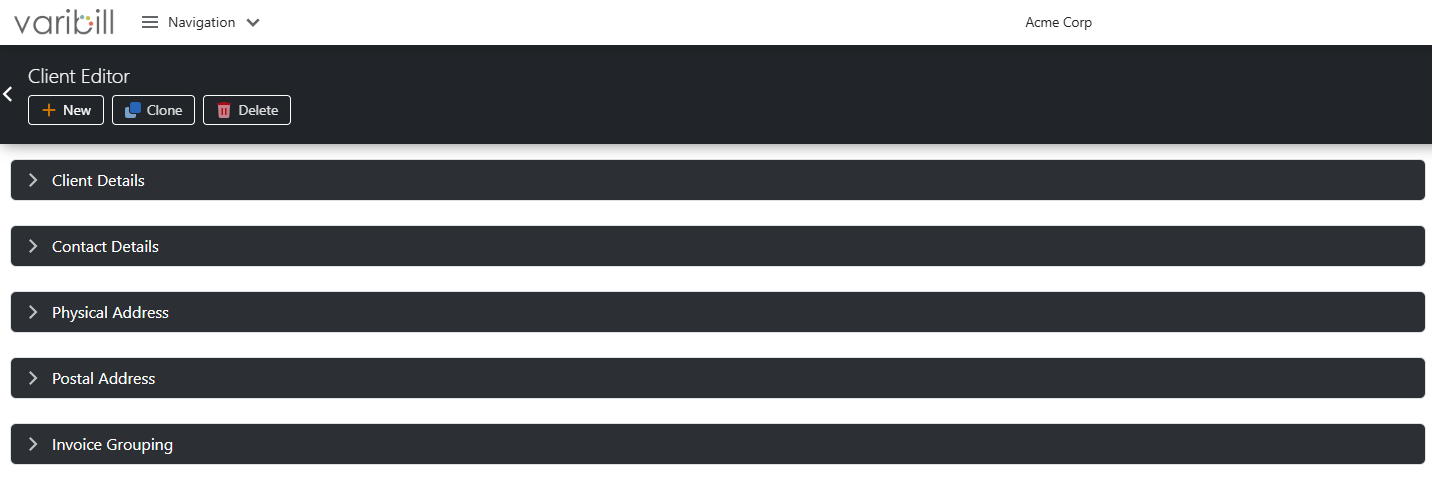
Access and Manage Clients
To view and manage clients:
- Navigate to Navigation → Clients → Client
- The Client List page will display all existing clients

From this page, you can:
- Create a new client using the New
button
- Clone an existing client using the
Clone button
- Edit an existing client by selecting an exiting Client record
Create a Client
To create a new client:
- From the Client List page, click New
- Select a Client Type
- Complete the required fields
- Click Save
Clone a Client
To create a new client based on an existing one:
- From the Client List page, select a client
- Click Clone
- Update the required fields
- Click Save
Cloning allows you to reuse existing configuration and reduce manual setup.
Edit a Client
To update an existing client:
- From the Client List page, select a client
- The Client Editor will open
- Update the required fields
- Click Save
Delete a Client
To delete an existing client:
- From the Client List page, select one or more clients
- Click Delete
- Confirm the deletion when prompted
Warning! Deleted clients cannot be recovered. Ensure the client is no longer required before deleting.
What is a Client?
A Client is a business or individual that you bill for products or services.
Client information is used when generating invoices, so it is important that all details are accurate and kept up to date.
Client Types
When creating a client, you must choose a Client Type:
Business
A registered company or organization.
Individual
A legal person billed in their personal capacity.
The selected type determines:
- which fields are required
- how invoices are generated
Note: Client Type cannot be changed after creation.
Note: Validation is performed on certain fields (such as Tax Number, Registration Number, or ID Number) to ensure correct formatting. Should validation fail, please ensure that values entered are valid and that fields are correct before saving.
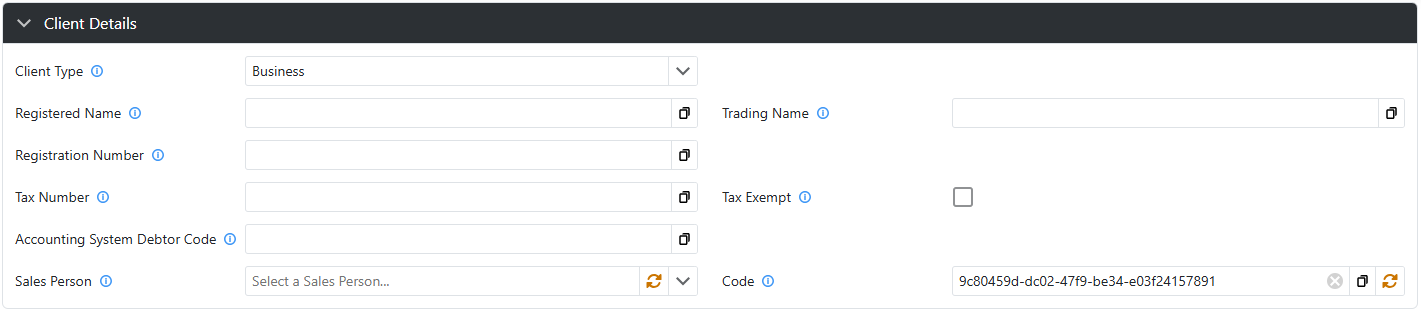
Client Details
Client details define how the client appears on invoices and how they integrate with your billing and accounting processes.

Accounting and Integration
Accounting System Debtor Code Used to link the client to your accounting system. This ensures invoices generated in Varibill are correctly posted to the corresponding account.
Code (External Reference) External reference used to link this client to another system (e.g. ERP, accounting platform, or ticketing system).
- Auto-generated by default
- Can be edited to match external system identifiers
- Used for integrations, API workflows, and cross-system data mapping
Sales Person
Assign a Sales Person to the client.
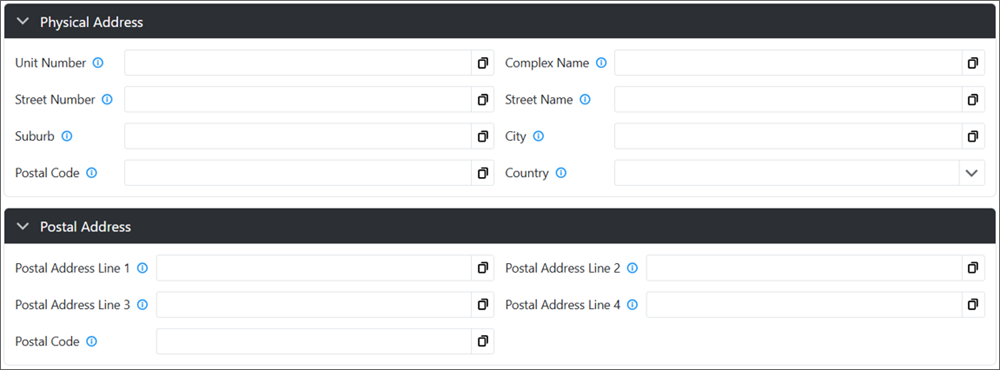
Address
The client’s physical address is displayed on generated invoices.
Invoice Grouping
Invoice grouping controls how billing data is grouped and presented on invoices.
Select an option based on how you want invoices to be generated and structured.
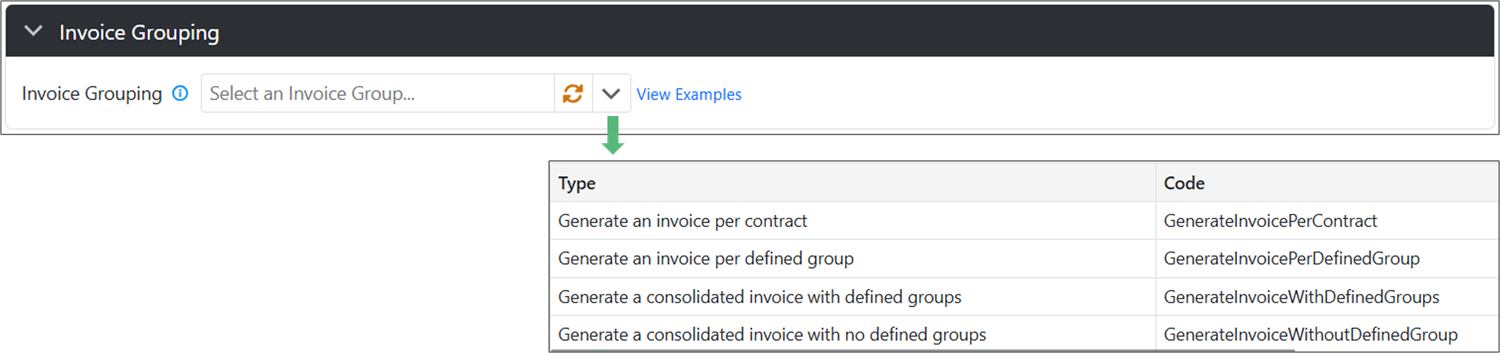
Make your Invoice Grouping selection from:
Consolidated invoice with no defined groups
- All billing data is combined into a single invoice
- No grouping is applied
Best for: Simple billing with no need to separate data
Click the image below to view an example 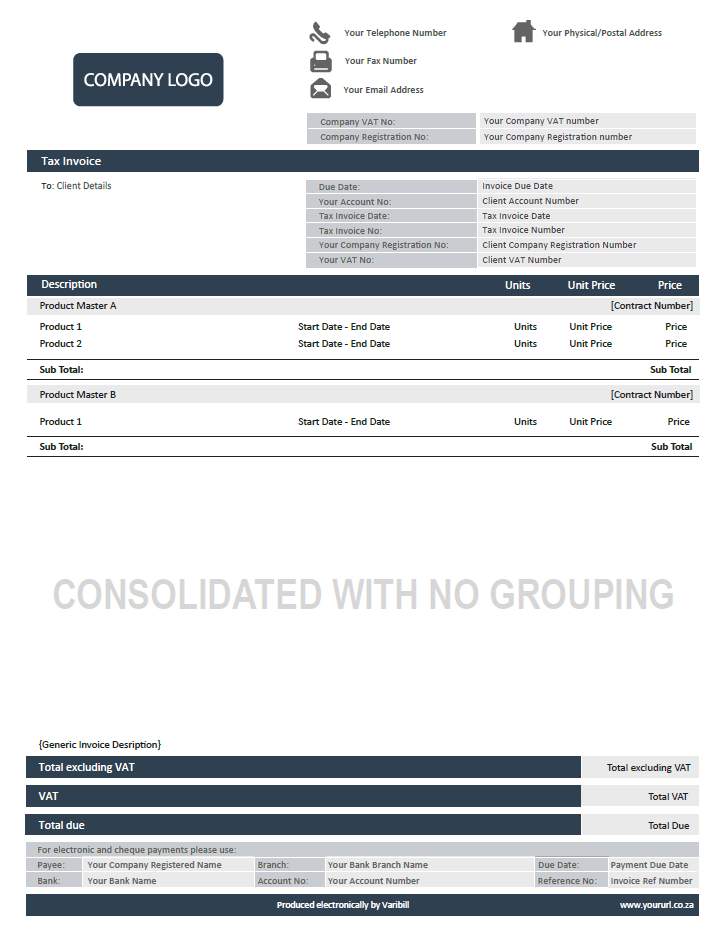
Consolidated invoice with defined groups
- One invoice is generated
- Data is grouped within the invoice (e.g. by branch or
category)
- Each group is subtotalled
Best for: Keeping one invoice while still showing grouped detail
Click the image below to view an example 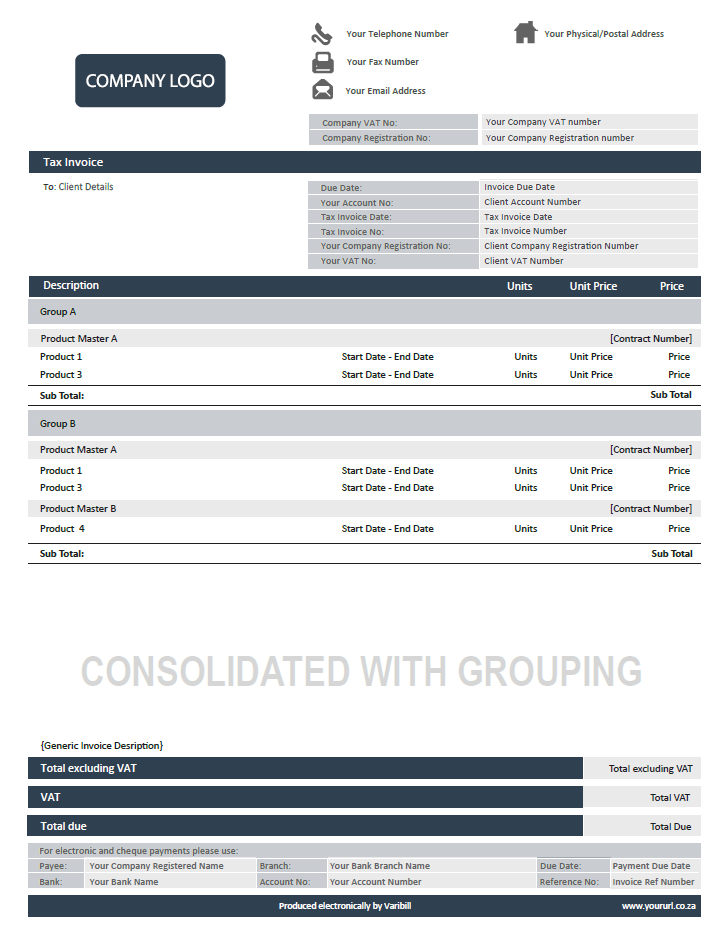
Invoice per defined group
- A separate invoice is generated for each group
- Each group is billed independently
Best for: Clients that require invoices split by department, branch, or sub-client
Click the image below to view an example 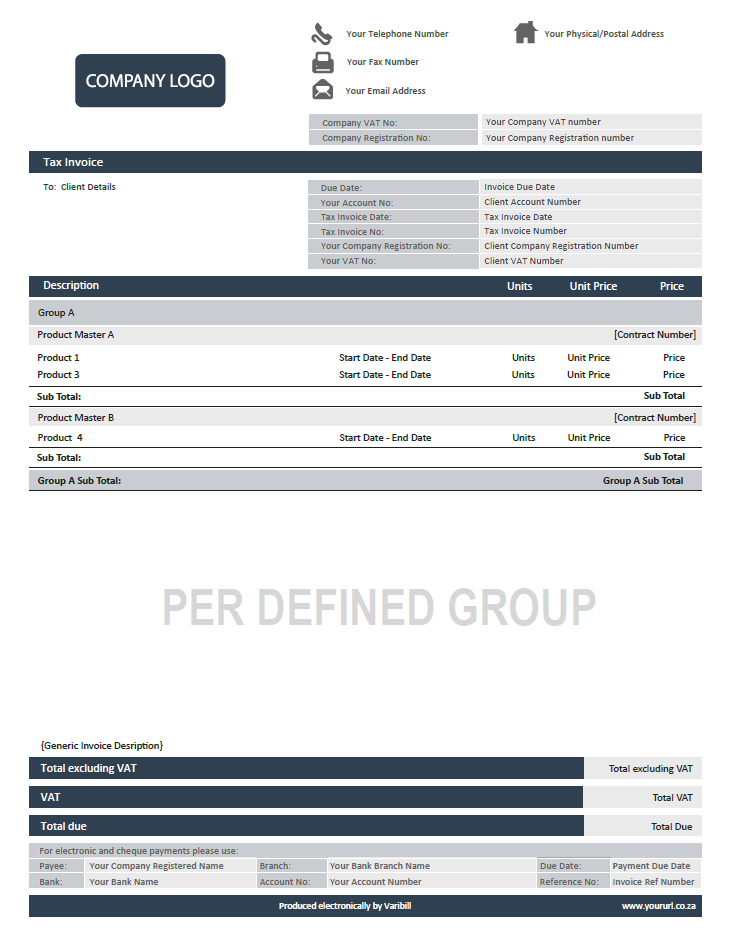
Invoice per contract
- A separate invoice is generated for each contract
- Sales Person may be applied per contract (if configured)
Best for: Contract-level billing and reporting
Click the image below to view an example 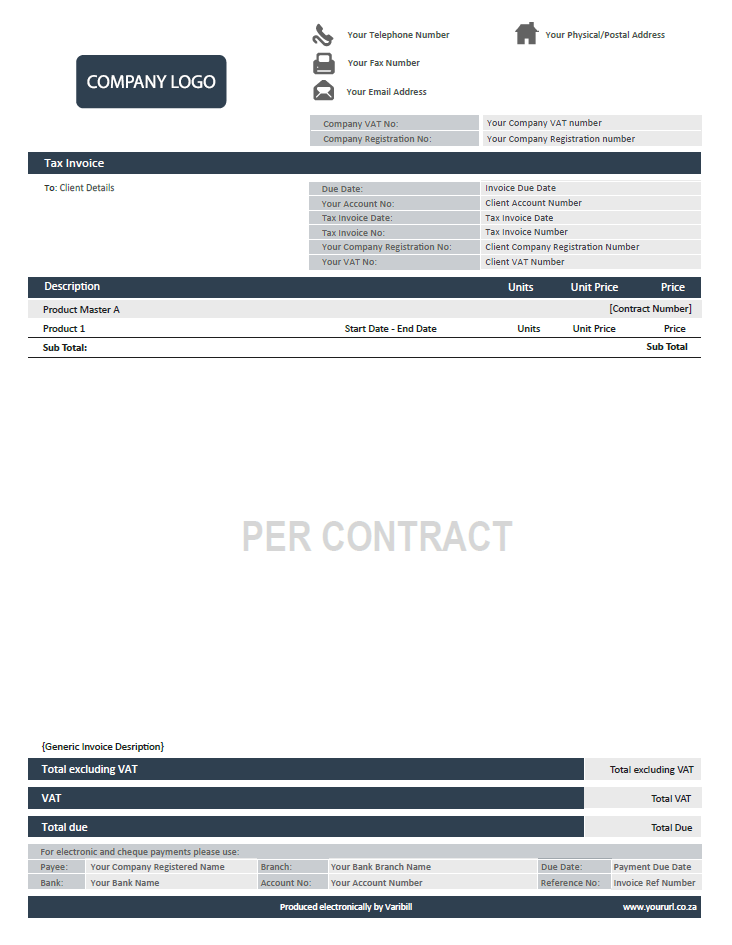
Was this article helpful?
That’s Great!
Thank you for your feedback
Sorry! We couldn't be helpful
Thank you for your feedback
Feedback sent
We appreciate your effort and will try to fix the article