Introduction
Invoice and Credit Note reversals are no longer permitted through Varibill Classic. All reversals must now be performed in the Varibill User Interface (our preferred user interface) accessible through:
https://ui.varibill.com
Warning! Reversing invoices and credit notes is performed from the Billing Document screen in the Varibill User Interface. This functionality replaces the reversal process previously available in Varibill Classic.
Previous Method Through Varibill Classic
In Varibill Classic, reversals were performed from:
- Finance → Invoices
- Finance → Credit Notes
Note: These screens may still be visible in Varibill Classic, however, reversals can no longer be completed there.
How to Reverse an Invoice or Credit Note
Step 1: Log into the Varibill User Interface
Access the Varibill Client using the following URL:
https://ui.varibill.com
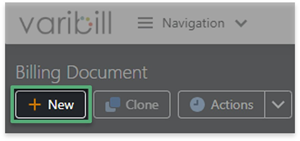
Step 2: Navigate to Billing Documents
From the top navigation menu:
- Navigate to Billing → Billing Document
Step 3: View Billing Documents
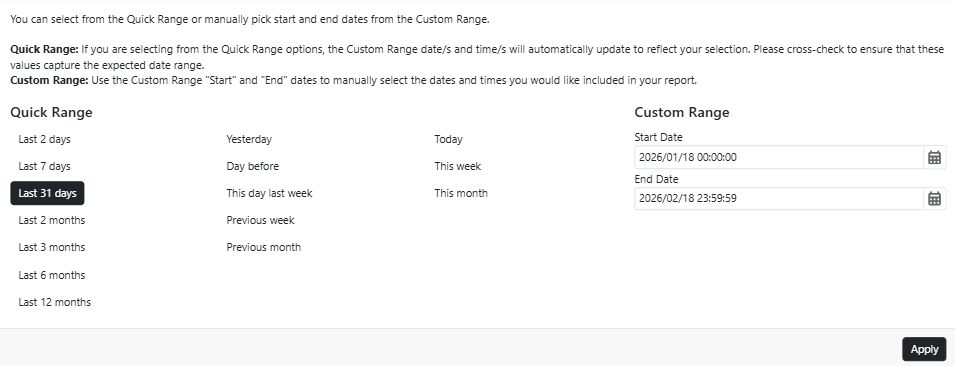
- Set your Date Range
Use the Date Range filter to populate the grid with your list of Billing Documents.
For example: Last 31 Days or Last 12 Months.

- Ensure that your Status Selection includes the document types you would like to generate.

Note: All Statuses are selected by default.
Step 4: Reverse the Selected Billing Document
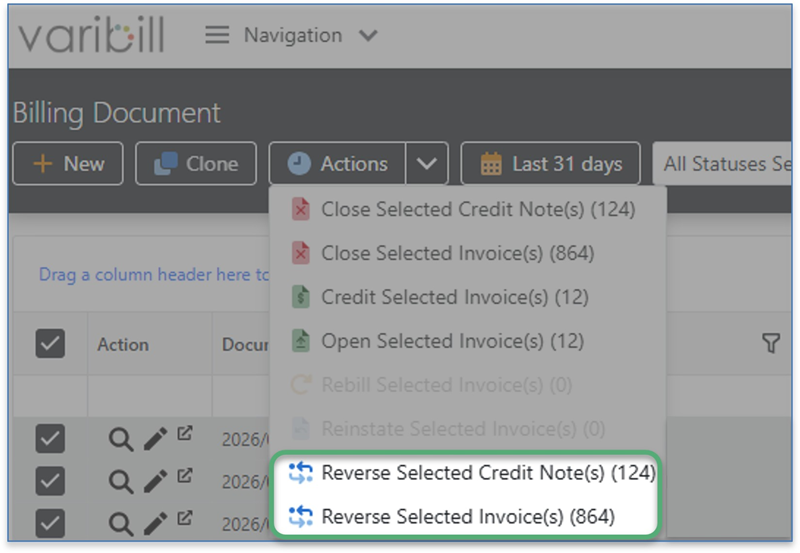
Select the required Invoice(s) or Credit Note(s).
Click Actions
Choose the relevant action:
- Reverse Selected Credit Note(s)
- Reverse Selected Invoice(s)
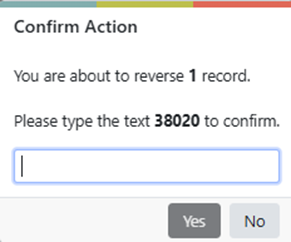
- You will be prompted to confirm the selected action.
Type the unique system-generated confirmation text into the field and click Yes.
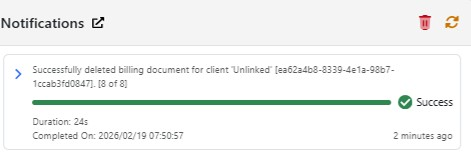
- Follow the progress of your selected action from the Notifications tab in the top-right of the screen.

Tip: In the Varibill User Interface, Invoices and Credit Notes are both managed from the Billing Document screen.
Still Need Help?
- Confirm that you are logged into the Varibill User Interface (https://ui.varibill.com/login).
- Check your Date Ranges and Status Selections.
If you still need assistance, log a ticket with our Support Team.
Was this article helpful?
That’s Great!
Thank you for your feedback
Sorry! We couldn't be helpful
Thank you for your feedback
Feedback sent
We appreciate your effort and will try to fix the article