Overview
Varibill reports are generated on demand and processed in the background.
Once a report has been submitted, you can continue working in Varibill while it is prepared. Progress is available through Notifications, and completed reports can be downloaded from Processed Reports.
For help choosing a report, see Reports Overview.
Generate a Report
- Navigate to Reports.
- On the Available Reports tab, find the report you want to generate.
- Click Generate.
- Select the required date or reporting period.
- Click Submit.
A confirmation message indicates that the report has been submitted for processing.
Date Inputs
| Report | Select |
|---|---|
| Billing Comparison | A start date and end date for the billing periods to compare |
| Profitability Analysis | A start date and end date for the period to analyze |
| Monthly Revenue Movement | A month and year. The report includes the selected month and the month immediately before it |
| Effective Date Selling Rates | An effective date. The report includes data up to and including the selected date |
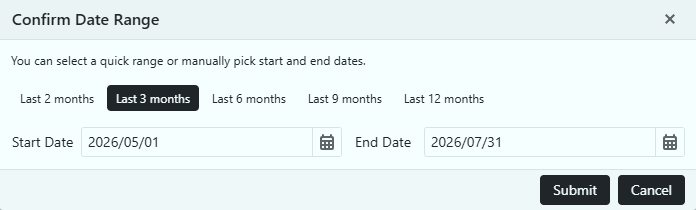
Tip: Where available, use the quick range options to select a common period. For Billing Comparison and Profitability Analysis, you can also enter the start and end dates manually.
Before You Generate a Report
Report results reflect the billing and configuration data available for the selected period. Check the following where they are relevant to your analysis:
- Costs: Profitability results depend on the cost recorded against the billing data. If no cost is recorded, a zero cost is used for that item, which can make profitability appear higher than it is.
- Salesperson assignments: Billing without a salesperson assigned at contract level appears as Unassigned in salesperson analysis.
- Product grouping: Products without the required grouping information may appear without a product group in report breakdowns.
Warning: Changes made after billing do not recalculate previously billed data. For example, adding or correcting a cost or salesperson assignment later applies going forward but does not rewrite historical billing results.
Monitor Report Progress
Reports are processed in the background and may take longer to generate when the selected period contains a large amount of data.
Use the Notifications panel to check processing progress and confirm when the report is complete.
Download a Report
When processing is complete:
- Navigate to Reports.
- Select the Processed Reports tab.
- Find the completed report.
- Click the Download icon in the Action column.
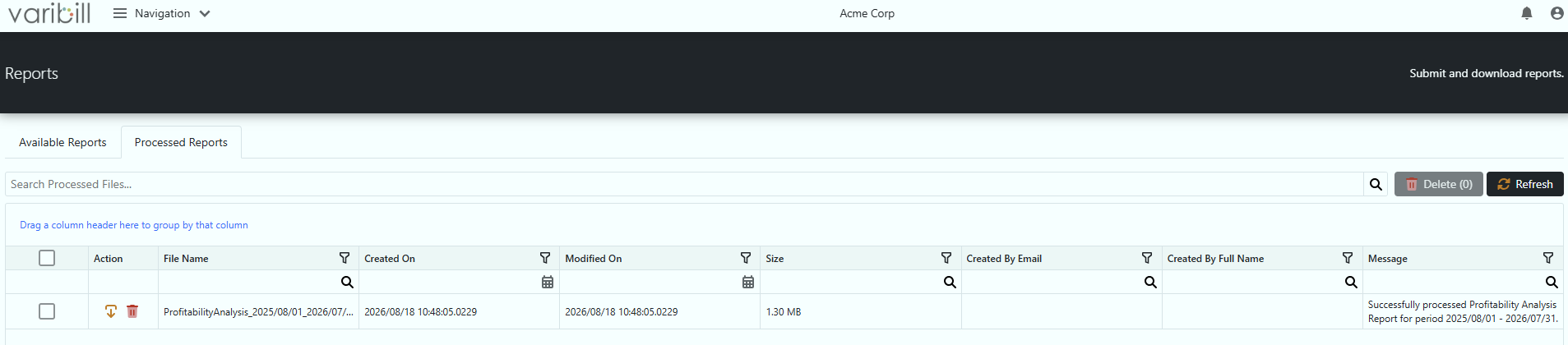
Reports are downloaded in Excel format.
Delete a Processed Report
To remove reports that are no longer required:
- Open the Processed Reports tab.
- Select one or more reports.
- Click Delete.
The selected reports are removed from the Processed Reports list.
Was this article helpful?
That’s Great!
Thank you for your feedback
Sorry! We couldn't be helpful
Thank you for your feedback
Feedback sent
We appreciate your effort and will try to fix the article