File Management

Modified on Thu, 30 Jul at 9:21 AM

Overview

File Management is Varibill’s central workspace for preparing, uploading, and processing file-based billing data. It provides a structured, template-driven workflow that ensures data entering the Varibill Billing Engine is accurate, consistent, and aligned with your product, client, contract, and pricing configuration.

File Management supports both recurring operational processes (such as monthly rate updates or source data imports) and once-off bulk data tasks (such as onboarding a new client base or importing a product catalog).

Accessing File Management

  1. Log in to the Varibill User Interface.
  2. Open the Navigation dropdown menu at the top of the screen.
  3. Select File Management.

Workflow Overview

File Management follows a left-to-right workflow across four tabs:

TemplatesProcessed TemplatesUpload FilesProcessed Files

Tab Purpose
Templates Generate blank or populated Excel templates for each data type
Processed Templates Download templates that have been generated and are ready to use
Upload Files Upload completed templates for validation and processing
Processed Files Review the results of processed uploads and download outcome files

Each stage provides validation feedback and visibility into the data lifecycle, ensuring that billing information is captured correctly and processed reliably.

Templates

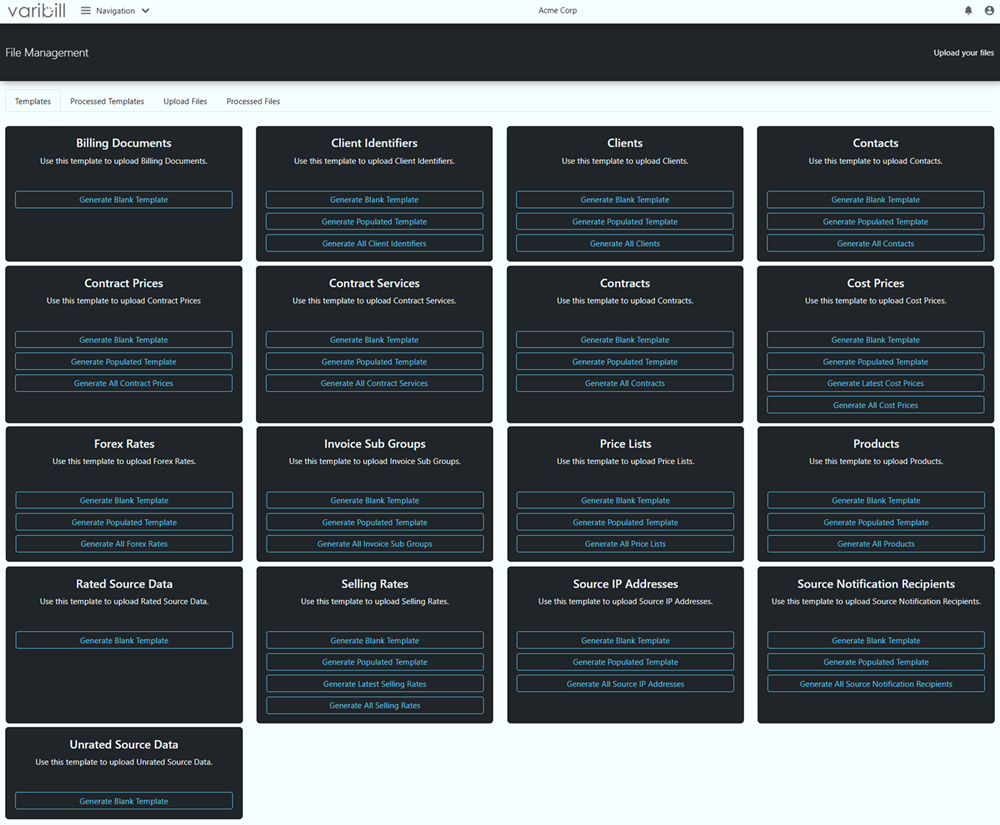
The Templates tab displays a card for each available template type. Each card shows the template name, a brief description, and one or more generate buttons.

Templates tab
Templates tab

Template Download Options

Depending on the template type, the following download options may be available:

Option What it generates
Generate Blank Template An empty Excel file with column headers and built-in validation rules. Use this when creating new records from scratch.
Generate Populated Template A blank template that includes additional reference worksheets with dropdown lists for lookup fields (such as Client Codes, Product Identifiers, or Contract Numbers). Use this when you need to reference existing data while preparing your file.
Generate Latest A template pre-populated with only the most recent records (for example, the latest selling rate per product). Use this to review or update current values without downloading the full history. Available for Cost Prices and Selling Rates only.
Generate All A template pre-populated with all existing records from Varibill. Use this to review, audit, or bulk-update your current data.

Tip: Use the Populated Template option when preparing data for the first time. The built-in dropdown lists help you select valid values for lookup fields and reduce validation errors on upload.

What Happens When You Click Generate

  1. Varibill generates an Excel file (.xlsx) containing the correct column headers, validation rules, and — depending on the option selected — reference data or existing records.
  2. Once generation is complete, the file appears in the Processed Templates tab, ready for download.

Note: Template generation runs in the background. For large datasets (such as generating all contracts or all selling rates), the file may take a few moments to appear in the Processed Templates tab.

Available Templates

The following template types are available in File Management:

Template Purpose Download Options
Billing Documents Update billing document status and details Blank
Client Identifiers Manage client identifiers linked to contracts Blank, Populated, All
Clients Create or update client master records Blank, Populated, All
Contacts Manage contact persons linked to clients Blank, Populated, All
Contract Prices Set contract-level pricing per product Blank, Populated, All
Contract Services Manage recurring or fixed services on contracts Blank, Populated, All
Contracts Create or update contracts linking clients to billing configurations Blank, Populated, All
Cost Prices Manage supplier cost pricing per product Blank, Populated, Latest, All
Forex Rates Upload foreign exchange rate records Blank, Populated, All
Invoice Sub Groups Manage invoice sub-groups for grouping line items Blank, Populated, All
Price Lists Create or update price list master records Blank, Populated, All
Products Define products and services with billing rules Blank, Populated, All
Rated Source Data Upload pre-rated usage or transaction data Blank
Selling Rates Manage selling rate pricing per product Blank, Populated, Latest, All
Source IP Addresses Manage IP addresses associated with Source Collectors Blank, Populated, All
Source Notification Recipients Manage notification email recipients for Source Collectors Blank, Populated, All
Unrated Source Data Upload raw usage or transaction data for Varibill to rate Blank

Processed Templates

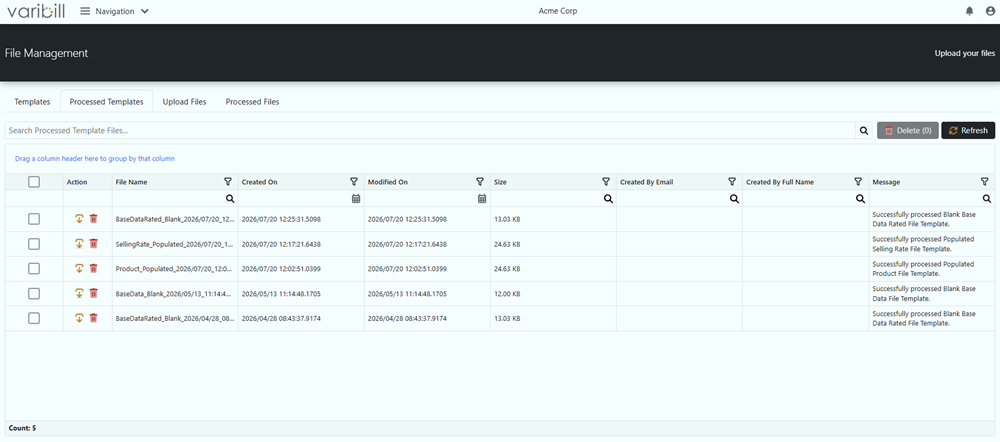
The Processed Templates tab shows all templates that have been generated and are ready for download.

Each entry displays:

  • The template name
  • The date and time the template was generated
  • The file status

Click the download icon to save the Excel file to your local machine. Open the file, populate the required data, and then upload it via the Upload Files tab.

Processed Templates tab

Tip: Always download the latest template before preparing data. Template structures may be updated over time, and using an outdated template can cause validation errors on upload.

Upload Files

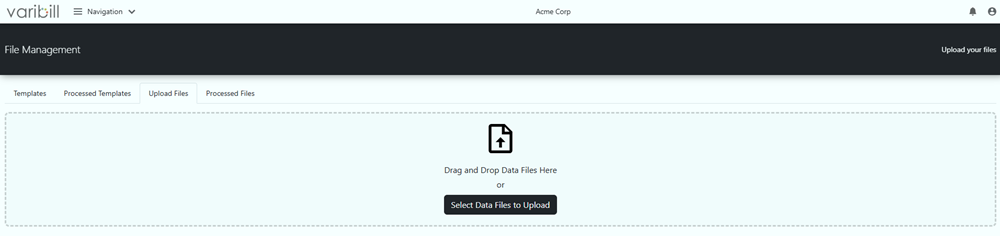
The Upload Files tab is where you submit completed templates for validation and processing.

Upload Files tab
Upload Files tab

Uploading a File

  1. Navigate to the Upload Files tab.
  2. Select the template type that matches the file you are uploading.
  3. Click Upload and select your completed Excel file (.xlsx or .xls).
  4. Varibill validates the file structure and content before processing.

Validation

When a file is uploaded, Varibill performs validation at multiple levels:

  • Column structure: The uploaded file must contain the expected column headers matching the template definition. Missing, extra, or duplicate columns will cause the upload to fail.
  • Field-level validation: Each cell is validated against its expected data type (text, number, date, boolean), maximum length, and any format requirements (such as valid email addresses or IP addresses).
  • Lookup validation: Fields that reference existing Varibill data (such as Client Codes, Product Identifiers, or Contract Numbers) are validated against the current database. Invalid references are flagged as errors.
  • Business rule validation: Additional rules are applied where relevant (for example, an End Date must be on or after the Start Date, and Forex Rate values must be greater than zero).

Warning! Ensure that lookup values (such as Client Codes, Product Identifiers, and Contract Numbers) match existing records in Varibill exactly. Mismatched values will cause row-level validation errors.

The Operation Column

Most templates include an Operation column that determines what action Varibill takes for each row when the file is processed:

Operation Action
Insert Creates a new record in Varibill
Update Updates an existing record. The record is matched using its unique identifier (such as Code or Contract Number).
Delete Removes an existing record
Unchanged Skips the row. No action is taken

Note: The Billing Documents, Rated Source Data, and Unrated Source Data templates do not use the Operation column. These templates follow their own processing rules.

Tip: When working with a populated or “All” template, set the Operation to Unchanged for rows you do not want to modify. Only change the Operation value for rows you intend to insert, update, or delete.

Processed Files

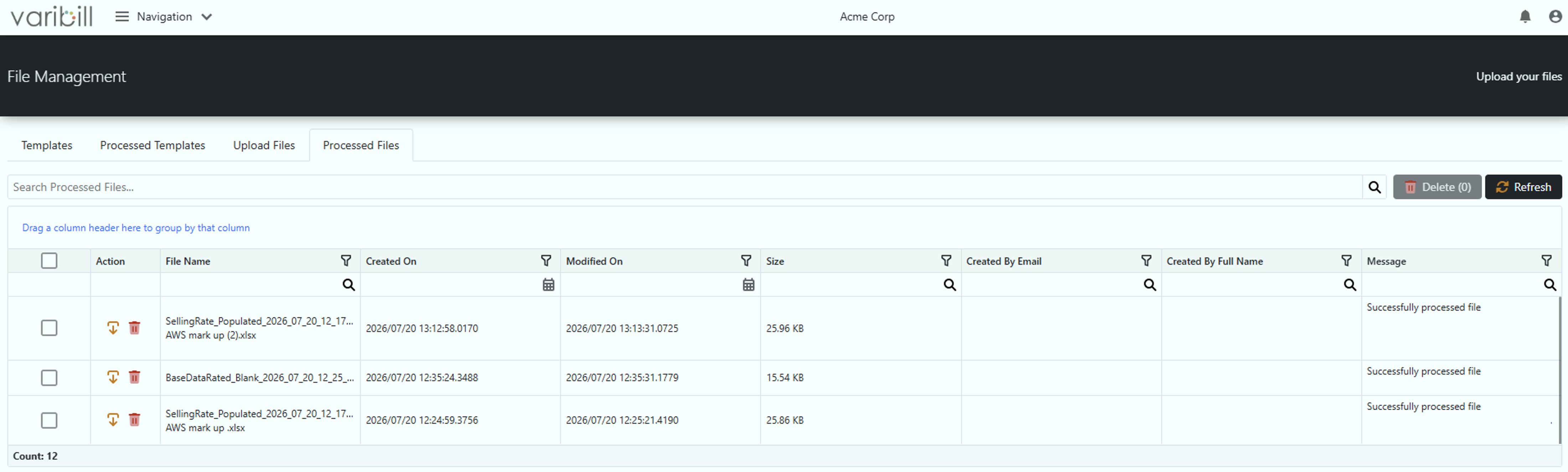
The Processed Files tab provides a complete record of all uploaded files and their processing outcomes.

Processed Files tab
Processed Files tab

Each entry displays the file name, upload date, and processing status:

Status Meaning
Success All rows were processed successfully
Failed No rows were processed. Download the file and check the Status column for error details.
Partially Succeeded Some rows were processed and some failed. Download the file and check the Status column to identify which rows failed and why.

Tip: When a file fails or partially succeeds, download the processed file and review the Status column. Each failed row includes a description of the validation error, allowing you to correct the data and re-upload.

Template Reference

This section describes each template type in detail, including the purpose of the template, its available fields, and which fields are required.

Common Fields

Most templates include the following fields:

Field Description
Operation Determines the action for the row: Insert, Update, Delete, or Unchanged
Code A unique internal identifier for the record. If left blank on insert, Varibill generates one automatically.
Status A system-generated field that reports the processing outcome for each row after upload. Do not populate this field.

Billing Documents

Upload billing document records to update invoice status or details.

Download options: Blank

Field Required Description
PK Billing Header Yes The unique identifier (GUID) of the billing document
Invoice Date Yes The date of the invoice
Billing Header Status Yes The status to apply to the billing document
Invoice Number No The invoice number

Note: This template does not include the Operation column. It is used to update existing billing document records only.

Client Identifiers

Manage client identifiers that link to contracts for billing validation. Client identifiers are used to match incoming source data to the correct contract during billing.

Download options: Blank, Populated, All

Lookup fields: Contract Number (dropdown in populated template)

Field Required Description
Operation Yes Insert, Update, Delete, or Unchanged
Contract Number Conditional The contract to link this identifier to. Required when the identifier is included in validation and billing.
Client Identifier Yes The identifier value (for example, an account number, username, or device ID). Must be unique per contract.
Included in Validation and Billing Yes Whether this identifier is active for billing validation (True or False)
Code Yes Unique record identifier. Auto-generated if left blank on insert.

Clients

Create or update client master records including company details, address information, and billing configuration.

Download options: Blank, Populated, All

Lookup fields: Sales Person Code (dropdown in populated template)

Field Required Description
Operation Yes Insert, Update, Delete, or Unchanged
Sales Person Code No The sales person linked to this client
Name Yes The client’s company or individual name
Registration Number No Company registration number
Tax Number No Tax registration number
Accounting System Debtor Code Yes The client’s account code in your accounting system
Unit Number No Address unit number
Complex Name No Address complex or building name
Street Number No Street number
Street Name Yes Street name
Suburb No Suburb
City Yes City
Postal Code No Postal code
Invoice Group Yes How invoices are grouped for this client
Tax Exempt Yes Whether the client is exempt from tax (True or False)
Code Yes Unique record identifier. Auto-generated if left blank on insert.
Country No Country name (must match a recognized country)

Contacts

Manage contact persons linked to clients. Contacts are used for communication and notification purposes.

Download options: Blank, Populated, All

Lookup fields: Client Code (dropdown in populated template)

Field Required Description
Operation Yes Insert, Update, Delete, or Unchanged
Client Code Yes The client this contact belongs to
Contact Unique Yes A unique identifier (GUID) for the contact. Auto-generated if left blank on insert.
Name Yes Contact first name
Surname No Contact surname
Contact Number No Phone number
Email Address Yes Email address (must be a valid email format)
Type Yes The contact type
Code Yes Unique record identifier. Auto-generated if left blank on insert.

Contract Prices

Set contract-level pricing per product. Contract prices override selling rates for a specific contract.

Download options: Blank, Populated, All

Lookup fields: Contract Number, Product Identifier (dropdowns in populated template)

Field Required Description
Operation Yes Insert, Update, Delete, or Unchanged
Contract Number Yes The contract this price applies to
Product Identifier Yes The product this price is for
Unit Rate Yes The price per unit
Effective Date Yes The date from which this price takes effect
End Date No The date this price expires. Must be on or after the Effective Date.
Code Yes Unique record identifier. Auto-generated if left blank on insert.

Contract Services

Manage recurring or fixed services on contracts. Contract services represent ongoing charges that are billed on a schedule.

Download options: Blank, Populated, All

Lookup fields: Contract Number, Product Identifier (dropdowns in populated template)

Field Required Description
Operation Yes Insert, Update, Delete, or Unchanged
Contract Number Yes The contract this service belongs to
Product Identifier Yes The product for this service
Description No A description of the service
Description Visible On Invoice Yes Whether the description appears on the invoice (True or False)
Start Date Yes The date the service begins
End Date No The date the service ends. Must be on or after the Start Date.
Quantity Yes The quantity to bill
Recurrence Type Yes How often the service is billed (for example, Monthly)
Code Yes Unique record identifier. Auto-generated if left blank on insert.

Contracts

Create or update contracts that link clients to billing configurations including billing cycles, terms, price lists, and product masters.

Download options: Blank, Populated, All

Lookup fields: Billing Cycle, Term Code, Product Master Code, Client Code, Price List Unrated Code, Price List Rated Code, Sub Group Code, Sales Person Code (dropdowns in populated template)

Field Required Description
Operation Yes Insert, Update, Delete, or Unchanged
Billing Cycle Yes The billing cycle for this contract
Term Code Yes The term applied to this contract
Product Master Code Yes The product master associated with this contract
Client Code Yes The client this contract belongs to
Price List Unrated Code Yes The price list used for unrated data
Price List Rated Code Yes The price list used for rated data
Sub Group Code No The invoice sub-group for line item grouping
Sales Person Code No The sales person linked to this contract
Type Yes The contract type
Contract Number Conditional The contract number. Auto-generated on insert. Required for update or delete operations.
Payment Terms Yes Payment terms in days
Start Date Yes The contract start date
End Date No The contract end date. Must be on or after the Start Date.
Description No A description of the contract
Purchase Order No Purchase order reference

Cost Prices

Manage supplier cost pricing per product and term. Cost prices represent what you pay for a product or service.

Download options: Blank, Populated, Latest, All

Lookup fields: Product Identifier, Term Code (dropdowns in populated template)

Field Required Description
Operation Yes Insert, Update, Delete, or Unchanged
Product Identifier Yes The product this cost price applies to
Term Code Yes The term this cost price applies to
Amount Yes The cost price amount
Recommended Amount Yes The recommended selling price
Effective Date Yes The date from which this cost price takes effect
Code Yes Unique record identifier. Auto-generated if left blank on insert.

Tip: Use Generate Latest to download only the most recent cost price per product and term combination, rather than downloading the full pricing history.

Forex Rates

Upload foreign exchange rate records used for currency conversion in billing.

Download options: Blank, Populated, All

Lookup fields: Forex Code (dropdown in populated template)

Field Required Description
Operation Yes Insert, Update, Delete, or Unchanged
Forex Code Yes The currency pair this rate applies to
Effective Date Yes The date from which this rate takes effect
Numerator Yes The numerator of the exchange rate. Must be greater than zero.
Denominator Yes The denominator of the exchange rate. Must be greater than zero.
Code Yes Unique record identifier. Auto-generated if left blank on insert.

Invoice Sub Groups

Manage invoice sub-groups linked to clients. Sub-groups are used to organize and group line items on invoices.

Download options: Blank, Populated, All

Lookup fields: Client Code (dropdown in populated template)

Field Required Description
Operation Yes Insert, Update, Delete, or Unchanged
Client Code Yes The client this sub-group belongs to
Name Yes The name of the sub-group
Code Yes Unique record identifier. Auto-generated if left blank on insert.

Price Lists

Create or update price list master records. Price lists are linked to a currency and assigned to contracts.

Download options: Blank, Populated, All

Lookup fields: Forex Code (dropdown in populated template)

Field Required Description
Operation Yes Insert, Update, Delete, or Unchanged
Forex Code Yes The currency associated with this price list
Name Yes The name of the price list
Type Yes The price list type
Code Yes Unique record identifier. Auto-generated if left blank on insert.

Products

Define products and services with their billing rules, tax configuration, and rating model.

Download options: Blank, Populated, All

Lookup fields: Product Master Code, Tax Group Code, Product Group Code, Base Data Conversion Rule Code (dropdowns in populated template)

Field Required Description
Operation Yes Insert, Update, Delete, or Unchanged
Product Master Code Yes The product master this product belongs to
Tax Group Code Yes The tax group applied to this product
Product Group Code No An optional product group for categorization
Base Data Conversion Rule Code Yes The conversion rule applied to source data for this product
Name Yes The product name
Identifier Yes A unique identifier for the product. Used to match records on update or delete.
Billing Principle Yes The billing principle applied to this product
Accounting Code No The accounting system code for this product
Inventory Update Yes Whether this product updates inventory (True or False)
In Advance Yes Whether this product is billed in advance (True or False)
Prorate Yes Whether billing is prorated for partial periods (True or False)
Display Zero Rated Yes Whether zero-rated line items are displayed on invoices (True or False)
Rating Model Yes The rating model used for this product
Description No A description of the product
Code Yes Unique record identifier. Auto-generated if left blank on insert.

Rated Source Data

Upload pre-rated usage or transaction data. Use this template when your source system already calculates the cost and selling price for each record.

Download options: Blank

Field Required Description
Client Identifier Yes The client identifier that links this record to a contract
Product Identifier Yes The product this record applies to
Record Identifier Yes A description or label for the record
Unique Identifier Yes A unique value that identifies this specific record
Tag No An optional tag for categorization or filtering
Last Seen Date Yes The date of the usage or transaction
Quantity Yes The quantity
Total Yes The total selling amount for this record
Cost No The cost amount for this record

Note: This template does not include the Operation column. All rows are treated as new source data records.

Selling Rates

Manage selling rate pricing per product, price list, and term. Selling rates define the standard unit price charged to customers.

Download options: Blank, Populated, Latest, All

Lookup fields: Product Identifier, Price List Code, Term Code (dropdowns in populated template)

Field Required Description
Operation Yes Insert, Update, Delete, or Unchanged
Product Identifier Yes The product this rate applies to
Price List Code Yes The price list this rate belongs to
Term Code Yes The term this rate applies to
Unit Rate Yes The price per unit
Effective Date Yes The date from which this rate takes effect
Code Yes Unique record identifier. Auto-generated if left blank on insert.

Tip: Use Generate Latest to download only the most recent selling rate per product, price list, and term combination, rather than downloading the full rate history.

Source IP Addresses

Manage IP addresses associated with Source Collectors. These addresses are used for network configuration and access control.

Download options: Blank, Populated, All

Lookup fields: Base Data Source Key (dropdown in populated template)

Field Required Description
Operation Yes Insert, Update, Delete, or Unchanged
Base Data Source Key Yes The Source Collector this IP address is associated with
IP Address Yes The IP address (must be a valid IP address format)
Code Yes Unique record identifier. Auto-generated if left blank on insert.

Source Notification Recipients

Manage notification email recipients for Source Collectors. Recipients receive notifications about collection job outcomes.

Download options: Blank, Populated, All

Lookup fields: Base Data Source Key (dropdown in populated template)

Field Required Description
Operation Yes Insert, Update, Delete, or Unchanged
Base Data Source Key Yes The Source Collector this recipient is associated with
Recipient Email Address Yes The email address of the recipient (must be a valid email format)
Recipient Email Name Yes The display name of the recipient
Code Yes Unique record identifier. Auto-generated if left blank on insert.

Best Practices

  • Always download the latest template before preparing data. Template structures may be updated over time.
  • Use the Populated Template option when working with lookup fields for the first time. The built-in dropdown lists help you select valid values.
  • Validate a small sample file before uploading large datasets.
  • Review the Status column in processed files immediately after each upload to identify and correct any errors.
  • When using a populated or “All” template, set the Operation to Unchanged for rows you do not intend to modify.
  • Use consistent naming conventions for Client Codes, Product Identifiers, and Contract Numbers to simplify data management.

Was this article helpful?

That’s Great!

Thank you for your feedback

Sorry! We couldn't be helpful

Thank you for your feedback

Let us know how can we improve this article!

Select at least one of the reasons
CAPTCHA verification is required.

Feedback sent

We appreciate your effort and will try to fix the article