Overview
Varibill grids include tools for searching, filtering, sorting, grouping, and adjusting how data is displayed.
A useful way to work with a large set of records is to:
- Use Search to find the relevant records.
- Use column filters to narrow those results further.
- Sort or group the results to make them easier to review.
This article explains the most useful ways to find and organize data in Varibill.
Search for Records
The search box appears in the toolbar above supported grids.
To search:
- Enter a search term.
- Press Enter or click the search icon.
Matching terms are highlighted in the returned records, making it easier to see why a result was included.
Note: Grid search does not run automatically as you type. Press Enter or click the search icon to run the search.
Search with Multiple Terms
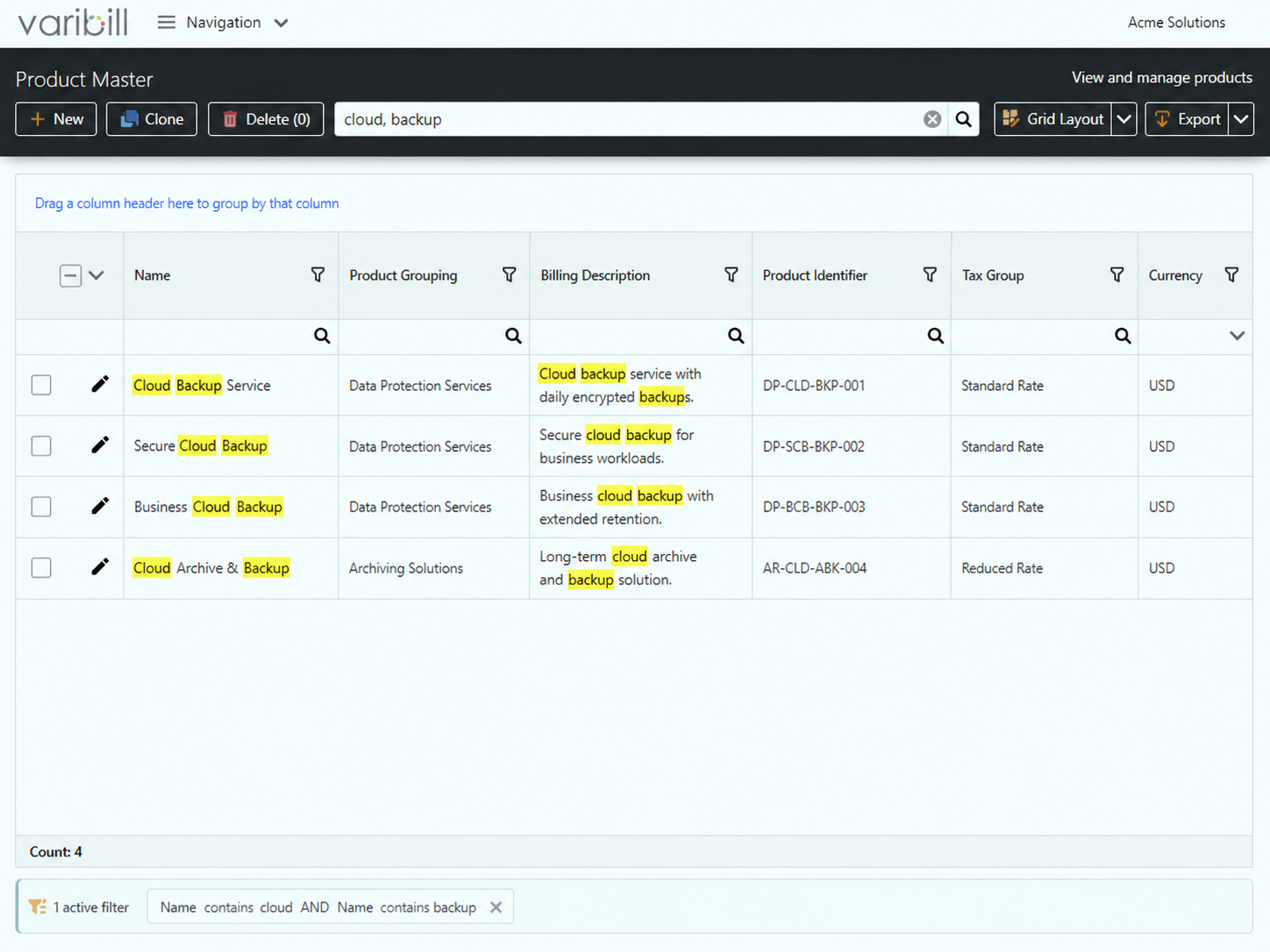
Separate search terms with a comma to make a search more specific.
For example:
cloud, backup
uses the terms together to narrow the returned results.
This is useful when a single search term returns too many records.
Search for an Exact Phrase
Use quotation marks when you want to search for a specific phrase.
For example:
"Acme Corp"
returns records matching that phrase rather than treating Acme and Corp as separate search terms.
Clear a Search
To return to the full dataset:
- Click the X in the search box to remove the search text.
- Press Enter or click the search icon.
Search First, Then Filter
Search and column filters perform different jobs.
Search determines which records are returned from the underlying data.
Column filters then narrow the records already returned to the grid.
For example, you could:
- Search for a customer or product using the toolbar search.
- Apply a column filter to show only records with a particular status, value, or other field.
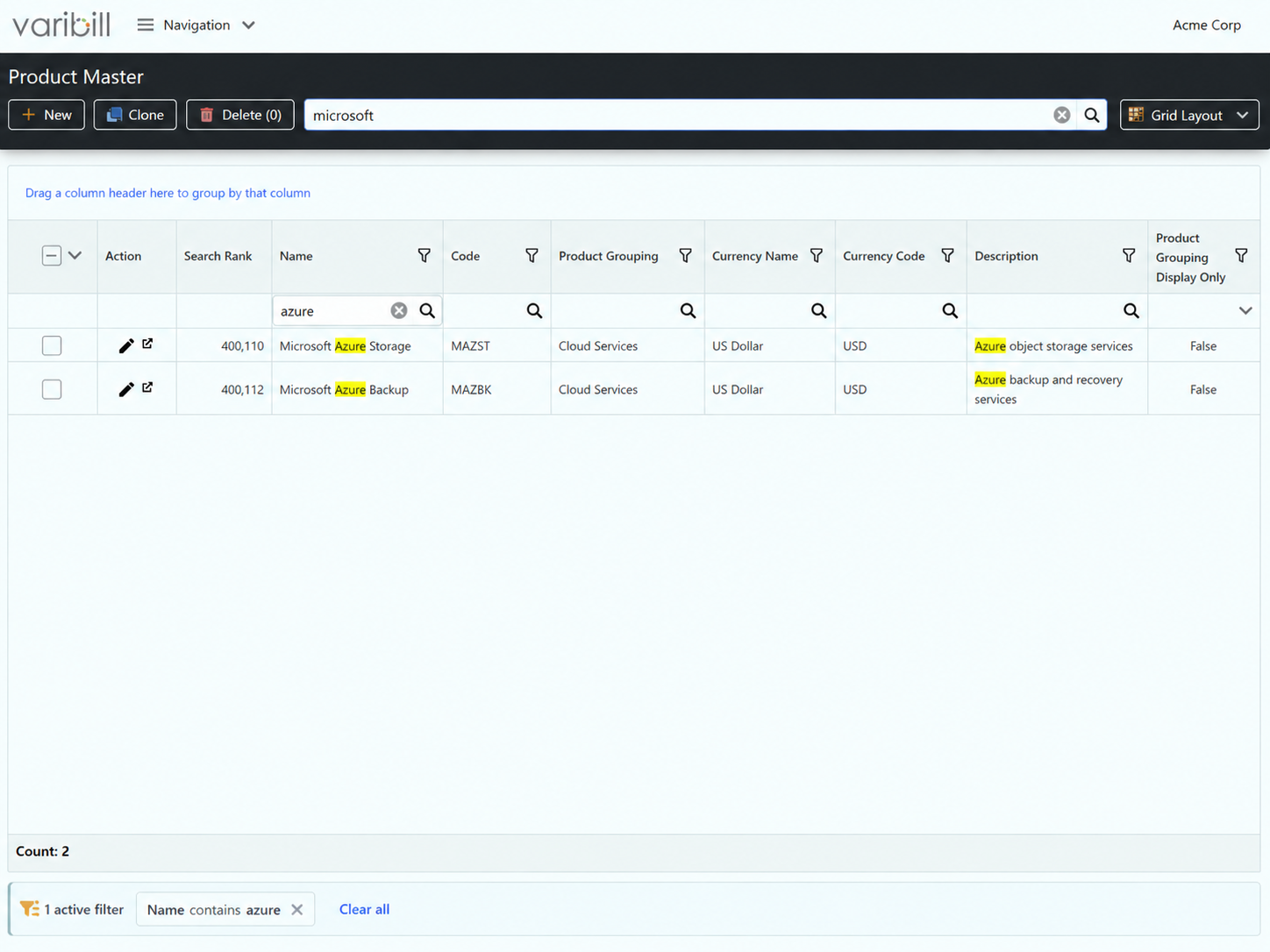
Active search criteria and filters are displayed below the grid so that you can see what is affecting the current results.
Warning: Source Data retains a 1,000-record search limit. Column filters work within the records returned by the initial search. Use the toolbar search first to target the required data, then apply column filters to narrow those results.
Filter Results
Column filters allow you to narrow results using the values in a specific field.
Filter a Column
There are two common ways to filter a column:
- Enter or select a value in the filter row below the column heading.
- Click the filter icon in the column heading and select one or more values.
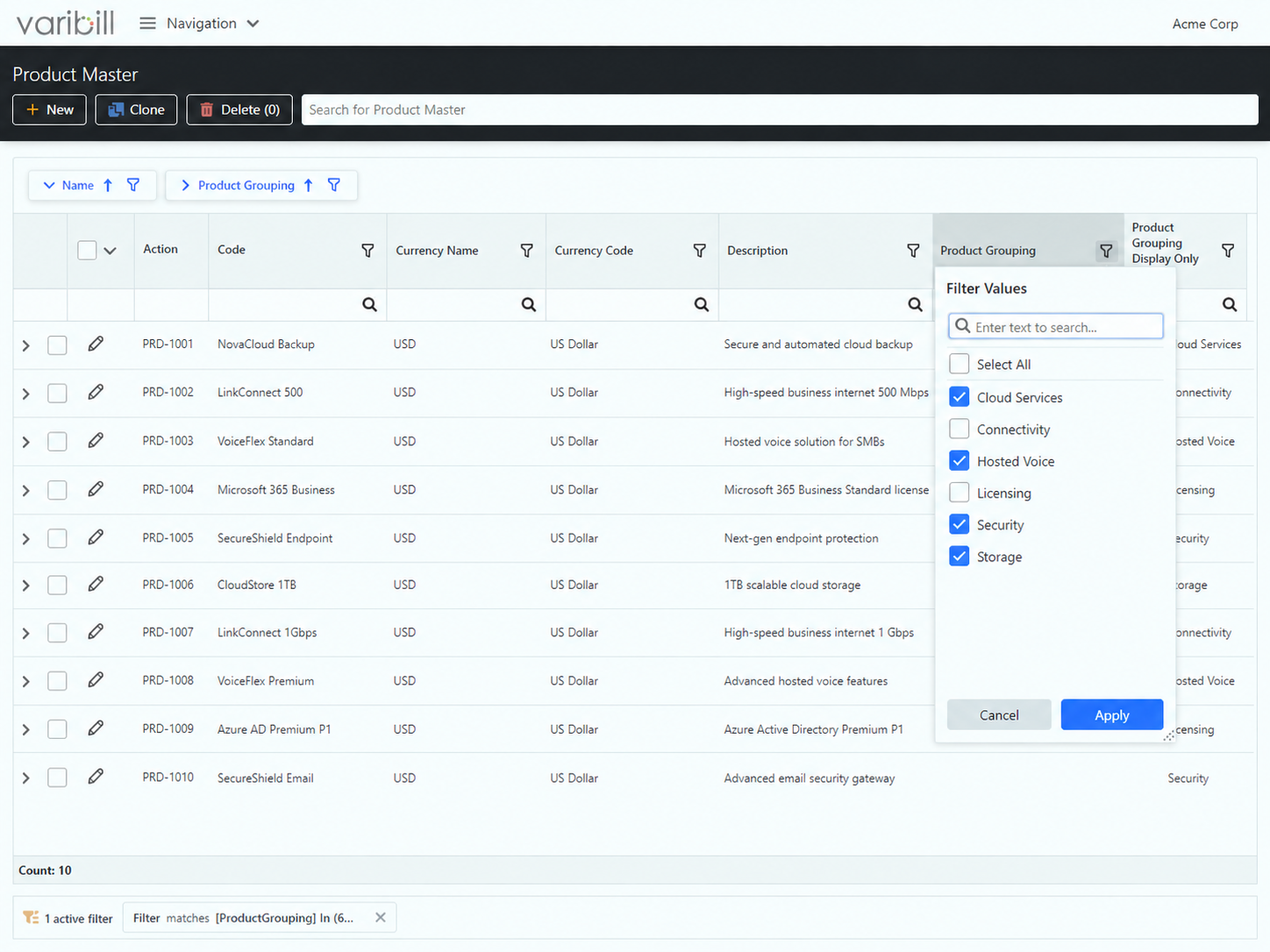
Applied filters are shown below the grid.
Clear Filters
Active filters are displayed below the grid.
Click the X on an active filter to remove it.
Tip: If the results do not look as expected, check both the toolbar search and the active column filters. Both can affect the records displayed.
Sort Results
Sorting changes the order in which records are displayed without removing records from the results.
Sort by One Column
Click a column heading to sort by that column.
Click it again to change between ascending and descending order.
Sort by Multiple Columns
To apply more than one sort:
- Right-click a column heading.
- Select Sort Ascending or Sort Descending.
- Repeat this on additional columns as required.
Additional sorts are applied after the first sort.
To remove sorting from a column, right-click the heading and select Clear Sorting.
Group Results
Grouping organizes records into collapsible sections based on the values in a column.
Group by a Column
To group records:
- Drag the column heading into the group panel above the grid.
Alternatively, right-click the column heading and select Group By This Column.
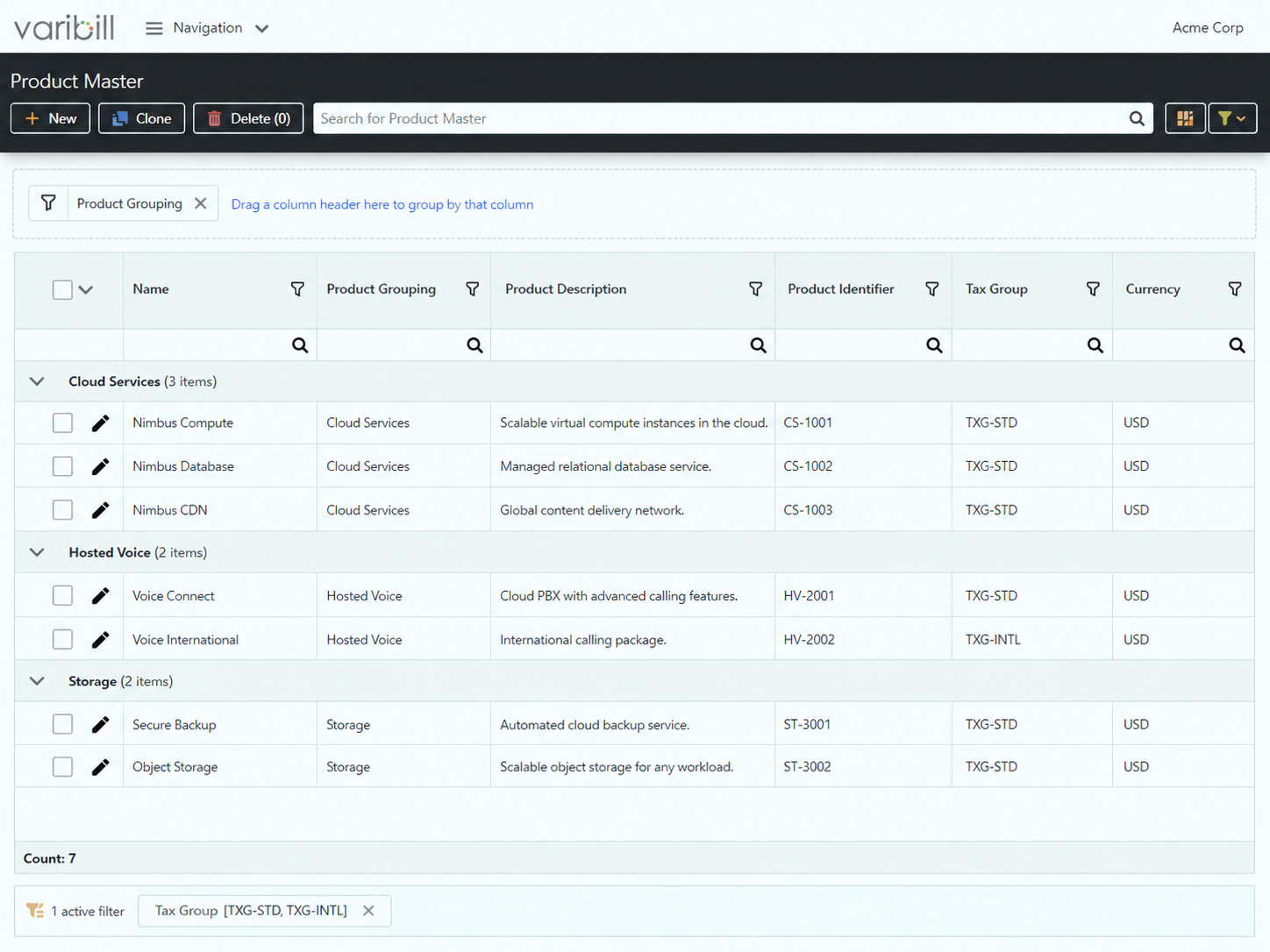
Records with the same value are grouped together.
Each group heading shows the number of records in that group.
Expand or Collapse Groups
Click the arrow next to a group heading to expand or collapse that group.
To expand or collapse all groups, right-click the group panel and select Expand All or Collapse All.
Remove Grouping
To remove a grouped column, right-click it in the group panel and select Ungroup.
To remove all grouping, select Clear Grouping.
Customize the Grid
Grid layouts can be adjusted to show the information most useful for the task you are performing.
Show or Hide Columns
To change which columns are displayed:
- Click Grid Layout.
- Select Column Chooser.
- Show or hide columns as required.
You can also open the Column Chooser by right-clicking a column heading.
Reorder and Resize Columns
Drag a column heading to change its position.
To resize a column, drag the edge of the column heading.
Use Grid Layout > Auto Fit to resize the displayed columns based on their content.
Reset the Layout
Varibill remembers grid layout settings in your browser.
To restore the default grid layout, select Grid Layout > Reset Layout.
Tip: Right-click a column heading for quick access to commonly used sorting, grouping, filtering, and column-layout options.
Was this article helpful?
That’s Great!
Thank you for your feedback
Sorry! We couldn't be helpful
Thank you for your feedback
Feedback sent
We appreciate your effort and will try to fix the article