Overview
This article explains how to create once-off invoices and credit notes using the Varibill User Interface.
As part of the transition away from Varibill Classic, the ability to create once-off billing documents from the legacy interface (Varibill Classic) has been removed. These documents are now created from the Billing Document screen in the Varibill User Interface, which provides a unified workspace for managing invoices, credit notes, and other billing records.
The steps below guide you through navigating to the Billing Document screen and creating a new once-off invoice or once-off credit note using the updated workflow.
Step 1: Log into the Varibill User Interface
- Access the Varibill User
Interface.
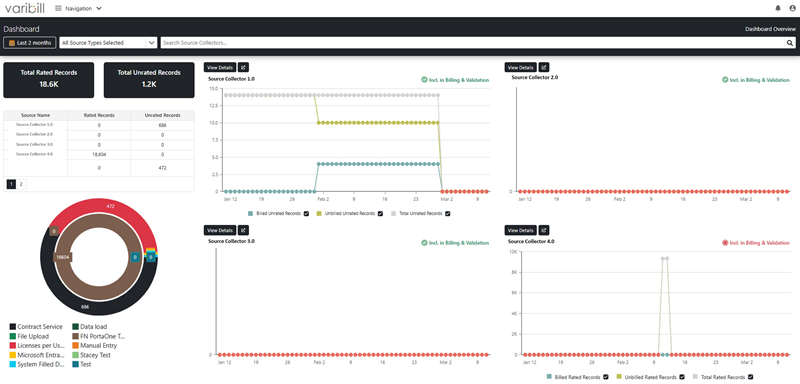
Ensure that you are using the following URL:https://ui.varibill.com - After logging in, you will be presented with the Varibill Dashboard.
Step 2: Navigate to Billing Documents
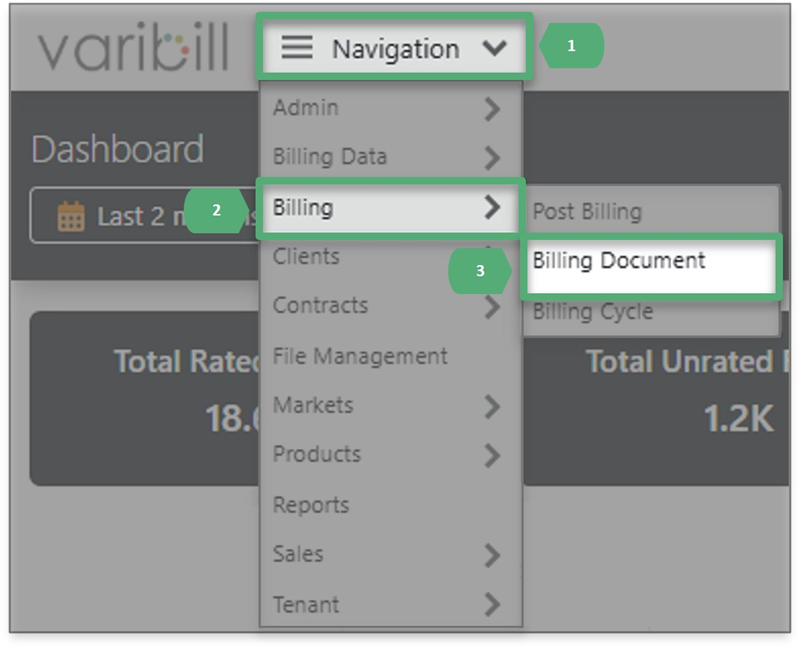
From the top navigation dropdown menu, navigate to:
- Billing → Billing Document
- Select Billing Document from the menu to open the Billing Document screen.
Step 3: From the Billing Document Screen
From the Billing Document screen:
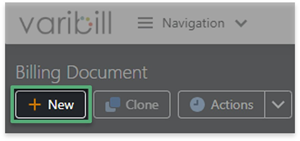
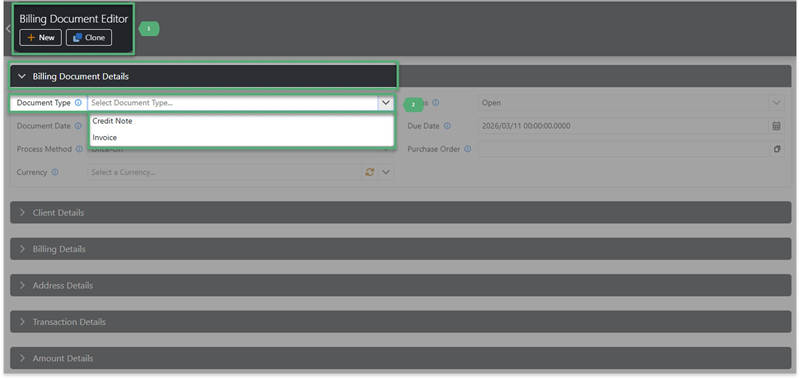
- Click the New button to open the Billing Document Editor page.
Select your required Document Type from the dropdown:
- Credit Note
- Invoice
Step 4: Enter Billing Document Details
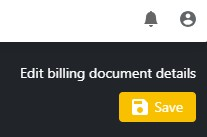
- Complete all required fields to create the Billing Document.
- Once all required information has been entered, click the Save button.
Tip: In the Varibill User Interface, invoices and credit notes are both managed from the Billing Documents screen, simplifying billing management and document visibility.
Still Need Help?
- Confirm that you are logged into the Varibill User Interface.
- If you still need assistance, please log a ticket with the Varibill Support Team.
Was this article helpful?
That’s Great!
Thank you for your feedback
Sorry! We couldn't be helpful
Thank you for your feedback
Feedback sent
We appreciate your effort and will try to fix the article