Posting to your Accounting System
If you’re happy with your invoices as they’ve been generated in Varibill, you can run your Varibill Accounting Connector to update your accounting system with all open invoices for the applicable billing cycle.
Your accounting system will generate an invoice number for each successfully processed invoice, which will be reflected on the Varibill invoice.
Process
Always make a backup of your accounting system before running the Varibill Accounting Connector.
Ensure all users log out of the accounting system properly (File → Exit) to avoid background process conflicts.
Open the Varibill Accounting Connector.
Log in with your Varibill username and password.
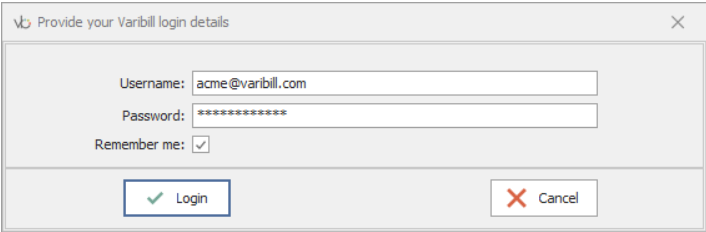
Varibill Accounting Connector Login A valid Varibill user with the permission “Post invoices to accounting system” can run the connector. To post credit notes, the “Post Credit Notes” permission is required.
Select the Post button.
Select the billing cycle you wish to post.
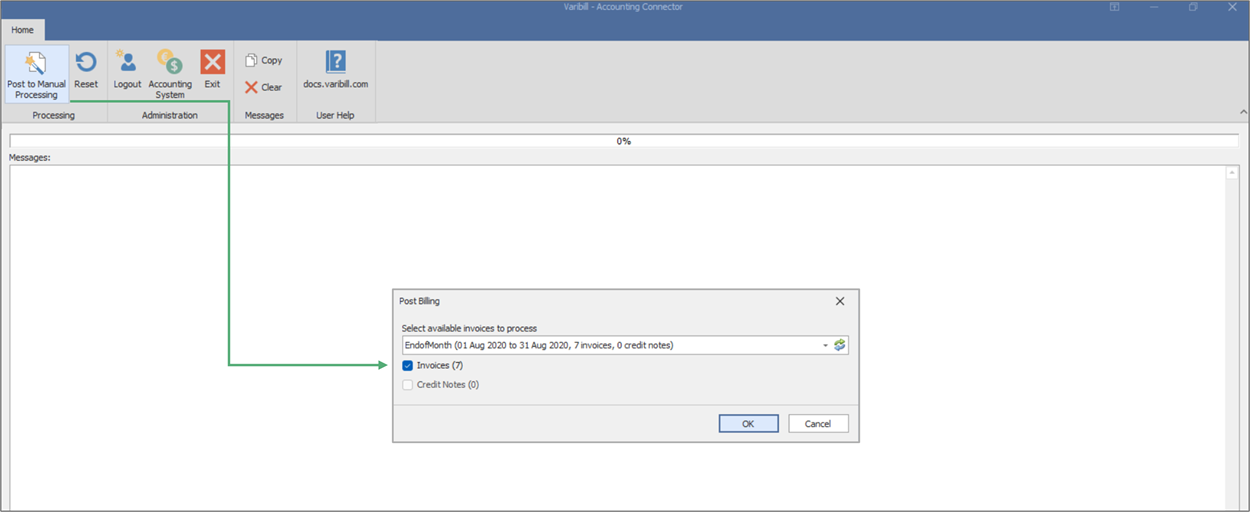
Varibill Accounting Connector Post Selection Only cycles with Open invoices and/or credit notes will be visible.
The accounting system will generate invoices and/or credit notes for the selected cycle.
Errors encountered during posting will be returned to Varibill, along with invoice numbers for successfully processed invoices.
Note: Do not close the Varibill Accounting Connector before processing is complete.
If there are open invoices in Varibill that should not be posted, these must be manually closed before running the connector.
Varibill does not validate: - Client status
- Credit limits
Once posting is complete, the message “Processing Complete” will be displayed.
Accounting System Integration
The following values are exchanged between Varibill and supported accounting systems during invoice processing:
| Accounting System | Posted As | Posted to Accounting System | Received from Accounting System |
|---|---|---|---|
| Pastel Evolution | Sales Orders | Header: Client Account Number, Invoice
Date Detail: Quantity, Excl. tax per line, Tax Type Code, Account/Inventory Code, PO Numbers, Projects, Sales Person Codes |
Total excl. tax, Total tax, Total incl. tax |
| Pastel Partner | Invoices | Header: Client Account Number, Invoice
Date Detail: Quantity, Excl./Incl. tax per line, Tax Type Code, Account/Inventory Code, Description, Document Type, PO Numbers, Projects |
Total excl. tax, Total tax |
| Sage 300 (AccPac) | Sales Orders (Inventory) or Invoices (Account Codes) | Excl. tax per line, PO Numbers, Sales Person Codes | Total excl. tax, Total tax, Total incl. tax |
| Sage One | Invoices | Excl. tax per line | Total excl. tax, Total tax, Total incl. tax |
| QuickBooks Online | Invoices | Excl. tax per line | Total excl. tax, Total tax, Total incl. tax |
| Xero | Invoices | Header: Client Account Number, Invoice
Date Detail: Quantity, Excl./Incl. tax per line, Tax Type Code, Account Code, Description, Document Type |
Total excl. tax, Total tax, Total incl. tax |
Error Resolution
| Error | Reason | Resolution |
|---|---|---|
| Customer account code does not exist | Account number in Varibill does not exist in accounting system | Create account in accounting system OR update client account in Varibill, then reprocess invoice |
| Inventory item does not exist | Product code missing in accounting system | Create item OR update product mapping OR remove item and reprocess |
| GL Number does not exist | GL account missing in accounting system | Create GL account OR update mapping in Varibill and reprocess |
| Tax Type Code invalid | Tax code mismatch between systems | Create tax code OR update mapping and reprocess |
| User unauthorized / incorrect details | Login or permissions issue | Verify credentials, reset password, ensure valid accounting system user |
| GL Period blocked | Financial period closed | Reopen period and repost |
| Invoice not within Fiscal Period | Invoice date outside allowed period | Adjust period or invoice and repost |
| Not enough inventory on hand | Insufficient stock in accounting system | Update inventory and repost |
| Posting already in progress | Existing session running | Use Reset and restart posting |
Was this article helpful?
That’s Great!
Thank you for your feedback
Sorry! We couldn't be helpful
Thank you for your feedback
Feedback sent
We appreciate your effort and will try to fix the article