Client Management Guide
Navigation
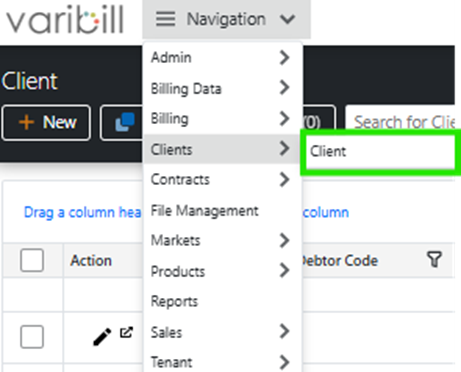
To edit data in the system, begin by navigating to the Client section in the main menu, then select Client.
Searching for a Client
Once on the Client Data screen, locate the search bar at the top of the page. Type your search term and click Search.

For best results, be as precise as possible with your search term. The system can contain thousands of records, so precision helps you find the exact entry quickly. To narrow your results even further, enclose the exact phrase in double quotation marks.
Example: "Client-ABC-123"
Understanding the Client Data Screen
The Client Data table displays the following key information for each record:
| Field | Description |
|---|---|
| Accounting System Debtor Code | Unique client code displayed on the accounting system/ERP that Varibill posts invoices to (e.g. Sage, QuickBooks, Xero). |
| Registered Name | Client registered name displayed on invoice. |
| Invoice Subgroup | Different departments that the client wants to bill. |
| Registration Number | Client registration number displayed on invoice (CIPC number). |
| Invoice Group | Indicates how the customer wants to receive their invoices. |
| Client Type | Indicates whether the client is a Business or an Individual. |
| Tax Number | Client VAT number displayed on invoice. |
| Salesperson | Salesperson allocated to the client. |
| Tax Exempt | Displays whether the client gets invoiced with or without VAT. |
| Code | Unique client code auto-generated by Varibill upon creation. |
| Street Name | Client street name displayed on invoice. |
| City | Client city name displayed on invoice. |
| Country | Client country displayed on invoice. |
| Contact Person | Responsible person who will receive any correspondence via Varibill. |
Additional Search Functions on the Client Data Screen
If data is not displayed on the Client Data screen
You can select the applicable field by following these steps:
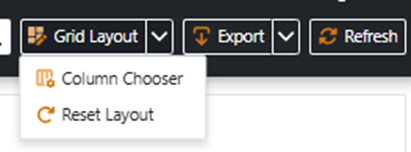
- Navigate to the Grid Layout button on the top right of your screen and select Column Chooser.
- Select the column that is not displaying (e.g. Registration Number).
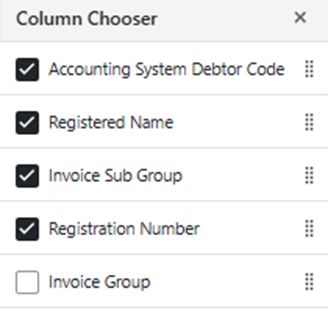
- You can deselect a column if you don't want to see the data by unticking it (e.g. Invoice Group).
Exporting Client Data
You can export data by following these steps:
- Navigate to the Export button on the top right of your screen.
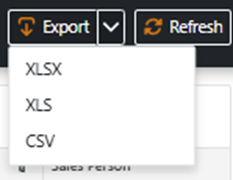
- Select the file format that you require.
Editing a Record
Modify a record
You can modify a line item by following these steps:
- Locate the record in the table.
- In the Actions column, click the Edit button.
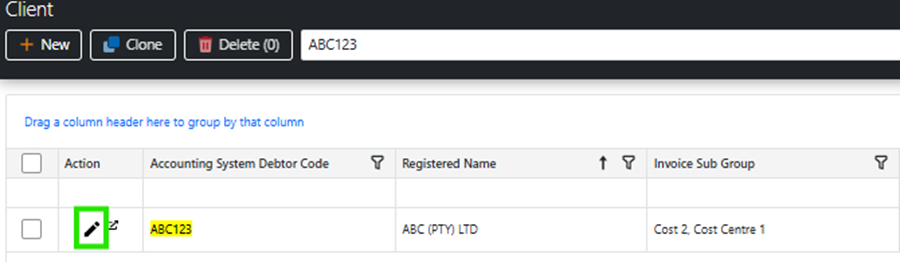
- Update any of the visible fields as needed.
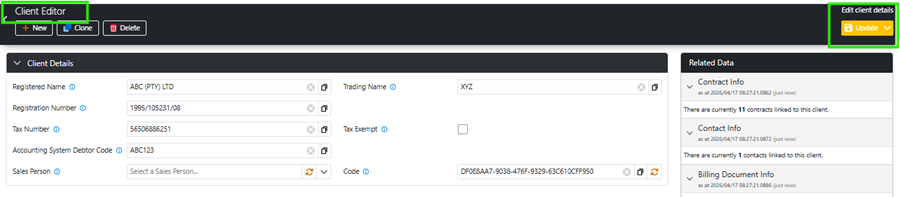
- When you have finished making changes, click the yellow Update button at the bottom of the edit screen.
The record will be saved instantly, and the updated information will appear in the Client Data table.
Delete a record
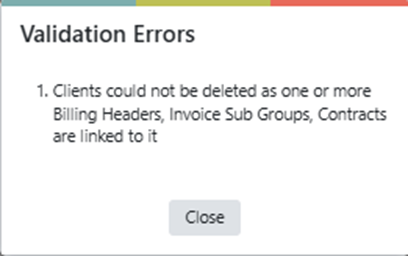
Important: Before the system will allow a client to be deleted, all Billing Headers, Invoice Subgroups, and Contracts linked to the client must be deleted first.
Once the linked data has been deleted, you can delete a record by following these steps:
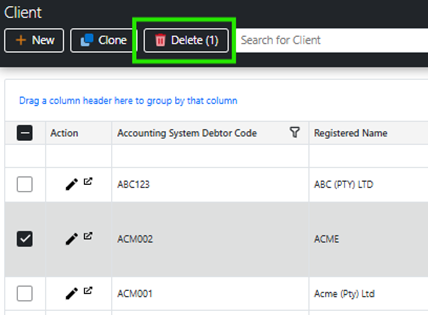
- Locate the record in the table that you need to delete.
- Select the tick box on the left side of the screen.

- Click the Delete button on the top left of your screen.
- A request box will appear — insert the 5-digit code. If the code is inserted correctly, the Yes option will activate.
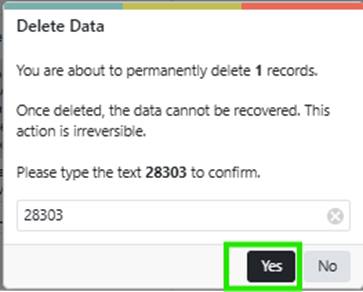
- Select Yes. The record will be deleted instantly and will no longer appear in the Client Data table.
Note: If the client still has Billing Headers, Invoice Subgroups, or Contracts linked to it, a validation error will appear. You will need to delete the relevant data before the client can be deleted.
Editing Repetitive Data in Bulk
If you need to update multiple clients with the same data, follow these steps:
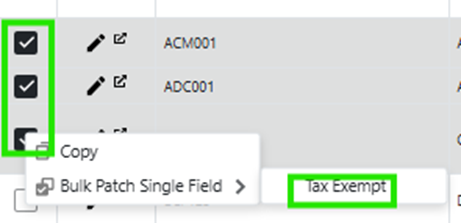
- Select the clients that you want to modify.
- Right-click on the tick box and select "Bulk Batch Single Field", then select the available option (e.g. Tax Exempt).
- A prompt box will appear — tick the box and select Apply.
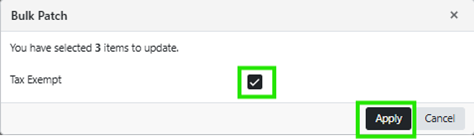
The selected clients will all be updated accordingly (e.g. set to not receive a VAT charge on the invoice).
Was this article helpful?
That’s Great!
Thank you for your feedback
Sorry! We couldn't be helpful
Thank you for your feedback
Feedback sent
We appreciate your effort and will try to fix the article