Introduction
Self-service Source collection in Varibill enables hierarchical data ingestion – this allows customers to configure their own Source Collectors – effectively connecting to their own customers’ data sources through an API.
An API allows communication between software components, enabling systems, or platforms to interact, exchange data, and perform actions programmatically through set queries through Varibill – retrieving data from the cloud and sending it back to your organization’s financial platforms.
Once successfully configured, Varibill’s Source Collectors continuously retrieve and normalise data into structured datasets for billing and reporting.
Varibill has simplified the collection of your billing data through source collection by offering a powerful (self-service) Source Collection feature. This makes it easy for customers to connect, collect, and consolidate data across their entire customer base.
The article below explains how to add a new Source Collector using Varibill’s updated interface.
Accessing the Varibill Interface
Configuring your own Source Collectors is only available through the Varibill Client Application, our preferred online interface.
You can access the Varibill interface using the following link: https://ui.varibill.com/login
If this is the first time you’re logging in, please refer to the login page for more information.
Following successful login, you will be presented with the Varibill Dashboard.
Navigate to Source Collectors
To add a new data source using the Source Collector, hover over the Navigation drop-down menu and navigate to Billing Data. Click on Source Collector from the selection window.
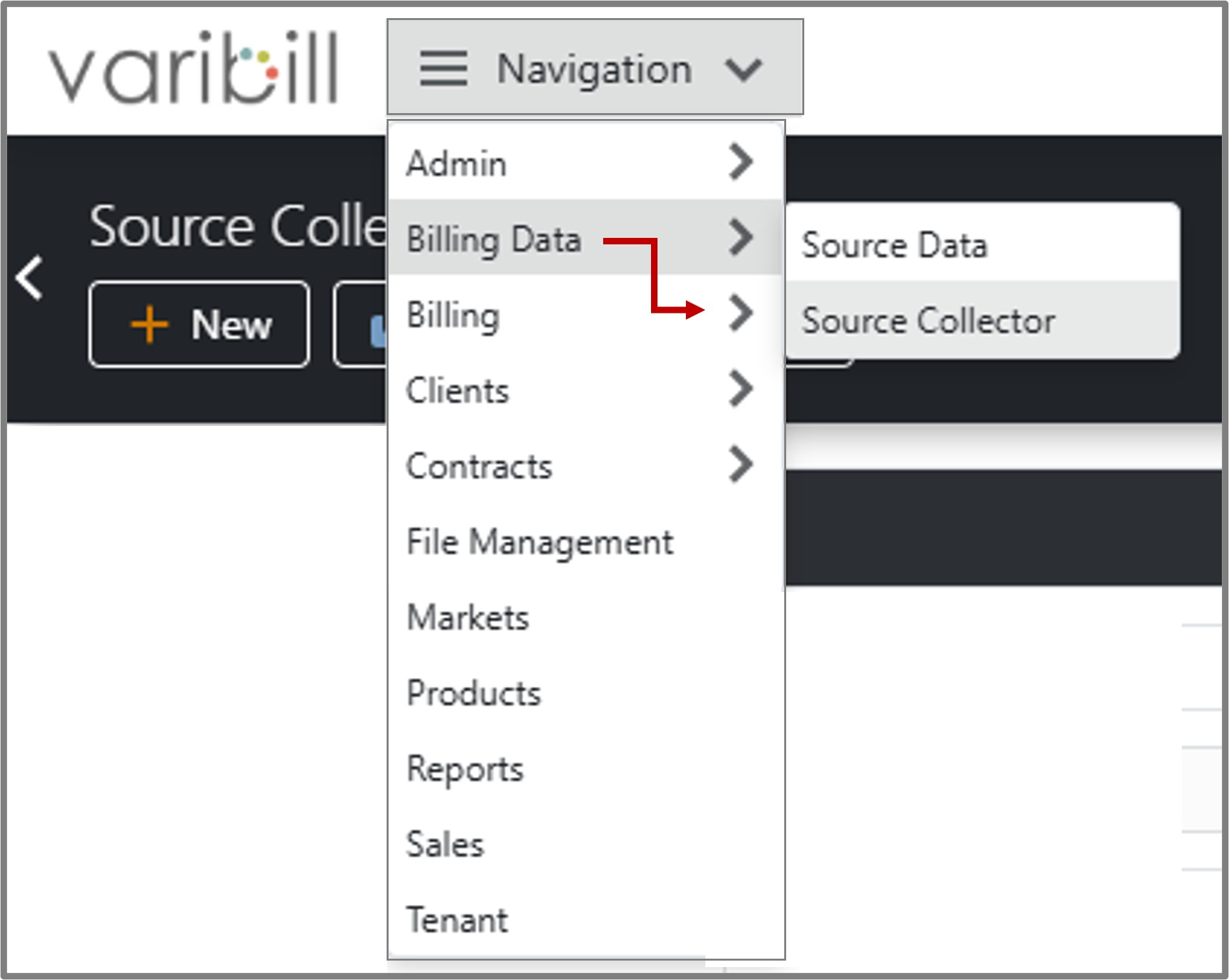
If Source Collection has never been run on a user account, the view within the Source Collector window will reflect only the default (system-provided) file types:
- Contract Service
- File Upload
- Manual Entry
- System Filled Data
Note: These are default collection files and cannot be edited.
Source Collector Process Flow
At a high level, the Source Collector configuration and run process follows this flow:
1. Tenant Selection → Select your Organization (Tenant
↓
2. Navigate to Billing Data → Source Collector
↓
3. Click Add (+ New) Source Collector → Source Collector Editor
↓
4. Configure Details, Runtime, Schedule, IP Addresses, Notifications, Batches
↓
5. Save (creates a system job and commits your configuration)
↓
6. Run Collector (Manual or Scheduled)
↓
7. Monitor Dashboard & Job Execution Files for success or failures
Creating a New Source Collector
Click on the + New button.
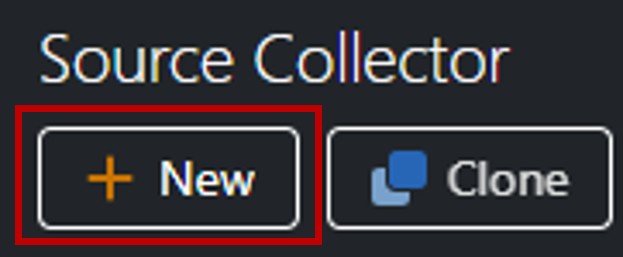
The Source Collector Editor window will open where you can complete the fields required for collecting your new data source.
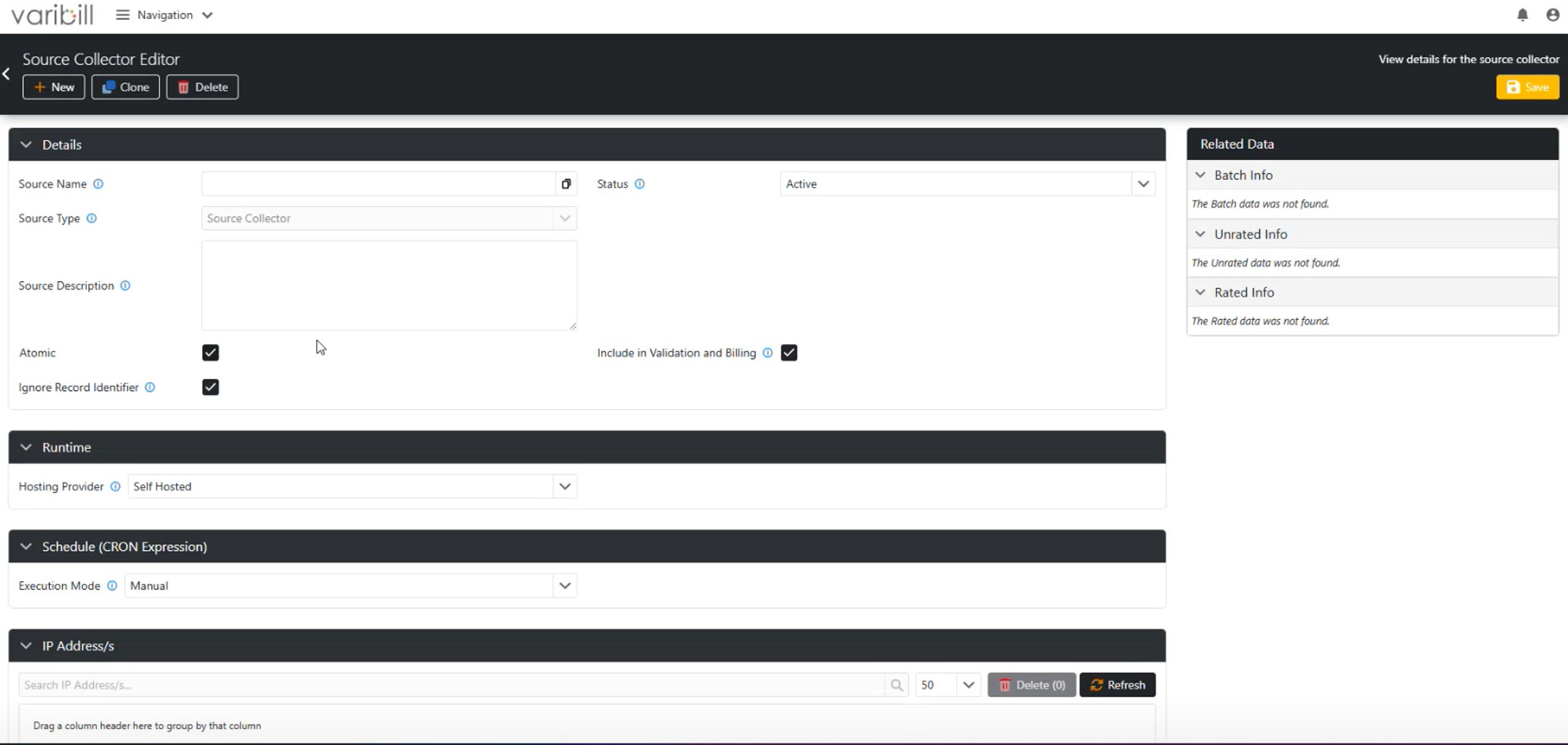
Source Collector Field Data
Details Window

- Source (Collector) Name: User defined, mandatory field.
Tip: Choose a source collector name that yourself and other users can easily recognise.
- Status: Select from Active/Inactive. Select Active for current queries. Select Inactive for data planned for collection at a later date.
- Source Type: A system generated field. Defaults to: Source Collector" for this operation.
- Source Description: User defined, mandatory field describing the data to be collected (maximum 250 characters).
- Atomic (checkbox):
- When selected, all items must be successfully loaded, or none will be posted to the database.
- When unselected, Varibill will perform a “best-effort” load and process as many records as possible.
- Validation & Billing (checkbox):
- When checked, data collected by this Source Collector will be included in validation and invoice generation.
- When unchecked, the data will be ignored and excluded from invoices.
- Ignore Record Identifier (checkbox):
- When checked, changes to the product’s record identifier or description during the billing cycle will not create new billing lines; Varibill will treat them as part of the same record.
API Authentication Window
- Tenant Key: System generated
- Source Key: An system generated unique key which can be regenerated at any time
- Source Secret: System generated
- Username: System generated
Runtime Window

Hosting Provider:
- Self Hosted: Selecting the Self Hosted option means that the complete infrastructure and source provider from which data will be collected is provided by the user. In this case, Varibill customers have written their own collectors which they implement on their own infrastructure and connect to Varibill.
- Varibill Cloud: Offers a dropdown list of the Varibill Cloud Source Collectors provided by Varibill.
- Read more about Varibill's Cloud Source Collectors. Varibill is consistently adding Standard Source Collectors to enable customers to seamlessly connect their data.
Azure Window (only applicable to Varibill Cloud Hosting Provider selection)
- Azure App: A system generated unique key.
- Replica Retry Limit: This field sets how many times a failed source query will attempt to run before the job is cancelled.
- Replica Timeout: How long (in seconds) Varibill will wait for a response before timing out and applying the retry limit. This prevents infinite runs and helps control costs.
- CPU Cores: Determines the processing power allocated to the job. Consider the size of the data being collected through this Source Collector and assign higher processing power for larger collections to avoid source collection failures/time-outs.
Note: Higher CPU Core values may reduce processing time and avoid runtime failures, however, higher values can increase run costs. Please reach out to Varibill Support if you require recommendations on setting processing power settings.- Container App Job Name: Azure job name automatically assigned by Varibill (read-only).
Schedule (CRON Expression) Window
Execution Mode (dropdown menu)
- Manual: Varibill will not invoke execution automatically. Runs are started on demand.
- Scheduled: Measured “run” times may be set. The CRON expression defines how often the Source Collector runs.

- CRON Expression Field Reference:
- Minute: 0-59
- Hour: 0-23
- Day of month: 1-31
- Month: 1-12
- Day of week: MON-SUN
- CRON Expression Field Reference:
Note: Use the asterisk * symbol to include "every" (e.g. * * * * * = every minute).
Tip: Use crontab.guru to build or test expressions.
Note: CRON expressions follow this structure: "minute - hour - day-of-month - month - day-of-week". Example: 0 9 * * MON → runs at 9 AM every Monday.IP Address/es Window
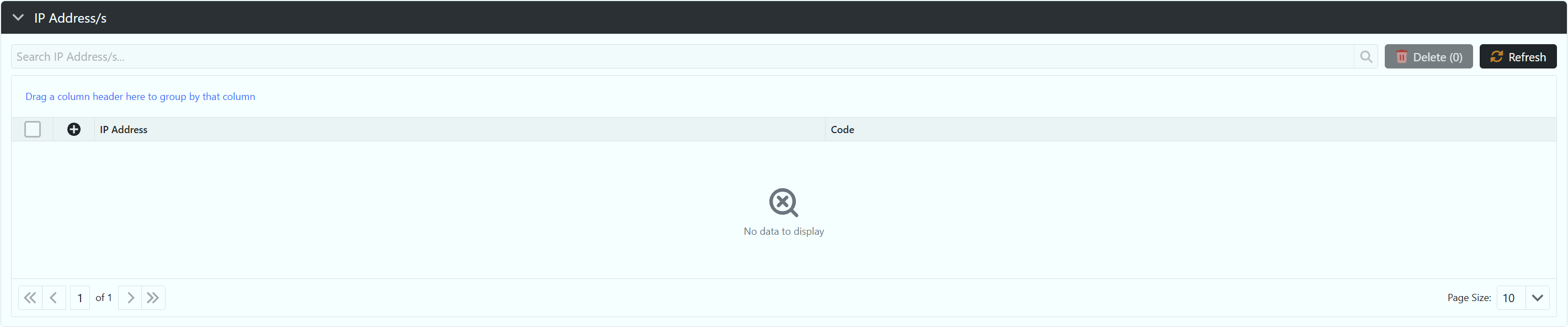
IP Address/es are used to whitelist IP's for Varibill's "Legacy VB" collection patterns. Through the online dashboard, this collection field may be phased out as accounting systems move to modern authentication.
Notification Recipients Window
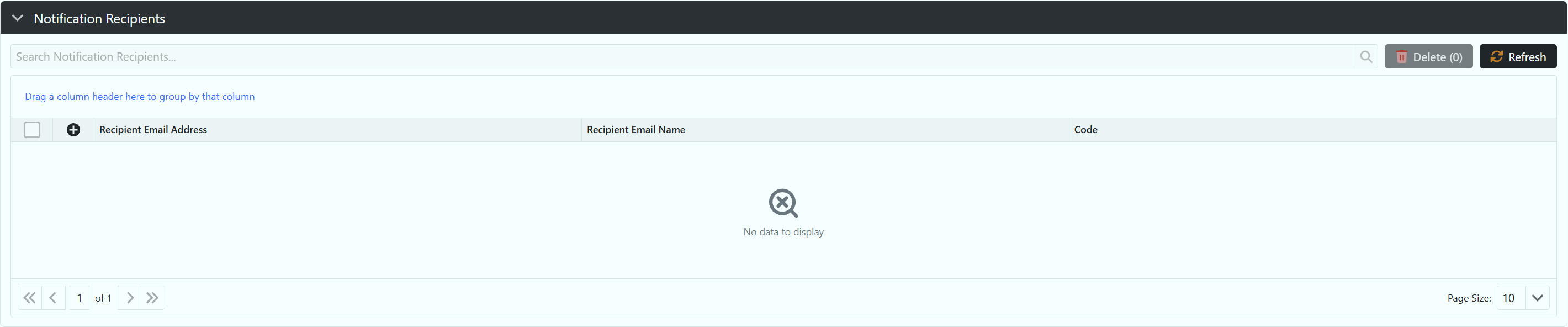
Use this window to set up which users should receive an email if a collection run fails based on the configured schedule.
Note: We recommend adding at least one member of your technical team to the Source Failed email notification recipient list. This ensures visibility when a Source Collector fails, as missed collection periods cannot be backdated and data may be permanently unavailable if not addressed promptly.Batches Window
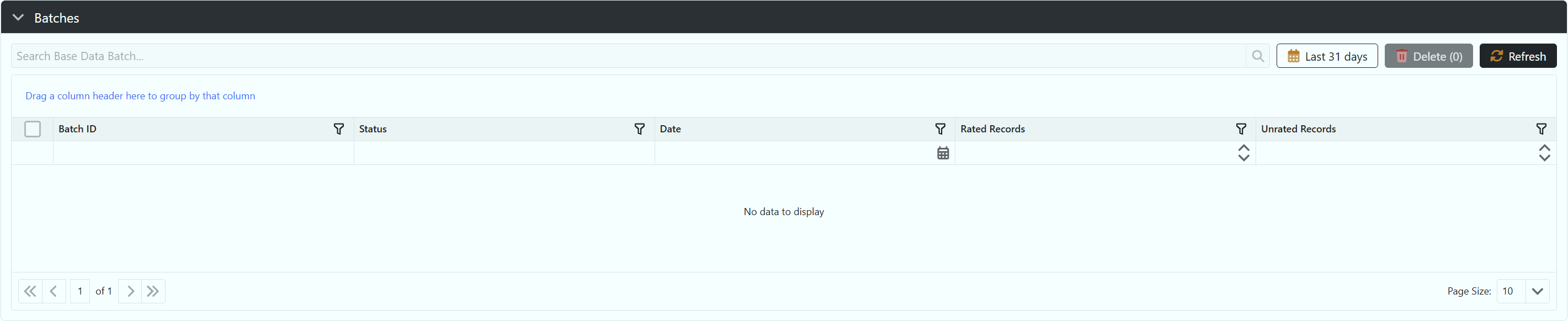
Batch grouping and behaviour depend on the Source Collector type. Batches can be used to segment runs and simplify troubleshooting.
Saving and Running a Source Collector
When you click Save, the configuration is committed to the database and the associated Azure job is created.
After a run completes, Job Execution Files become available for inspection. These files can be used for troubleshooting failed runs or validating successful runs.
Troubleshooting Failed Source Collector Runs
The Varibill Dashboard can be used to spot anomalies in collection metrics. A sudden spike or drop in otherwise consistent collection trends may indicate a Source Collector path error or failure.
Use the View Details button on the Dashboard to inspect events and metrics for a specific Tenant and Source Collector.
Was this article helpful?
That’s Great!
Thank you for your feedback
Sorry! We couldn't be helpful
Thank you for your feedback
Feedback sent
We appreciate your effort and will try to fix the article